
LinkedIn Company Posts on Digital Signage
Show your LinkedIn company page posts on your workplace screens (coming soon). Valotalive’s LinkedIn digital signage app connects to your company page and displays your latest posts as a cycling slideshow that updates automatically every 15 minutes.

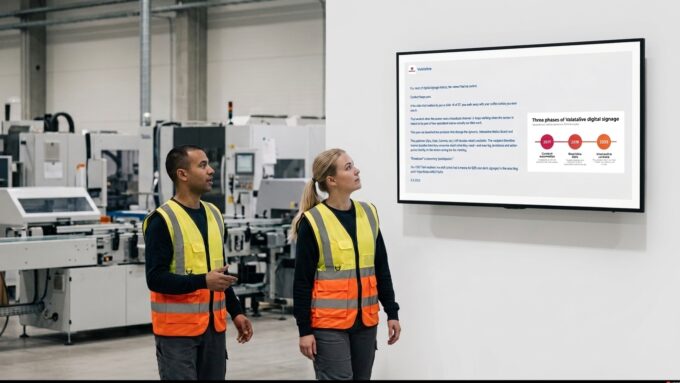
Your LinkedIn Posts Deserve a Bigger Audience
Your company page tells the story of your wins, your people, and your open roles, but only to people scrolling LinkedIn. Employees on the production floor, in logistics, or in the break room rarely see it, and lobby visitors never do.
The manual workaround of screenshotting posts into slides or pinning printouts on notice boards goes stale the day it’s made. With the LinkedIn app on your digital signage software, the posts you already publish reach every screen in the company, automatically.
Valotalive’s LinkedIn App Features

Connect your company page in minutes
- Authorize with LinkedIn’s standard OAuth 2.0 login. No API keys or developer setup.
- Pick your company page from a dropdown of the pages you administer.
- Requires LinkedIn Admin access to the company page and a Valotalive Admin role.
Posts render cleanly on screen
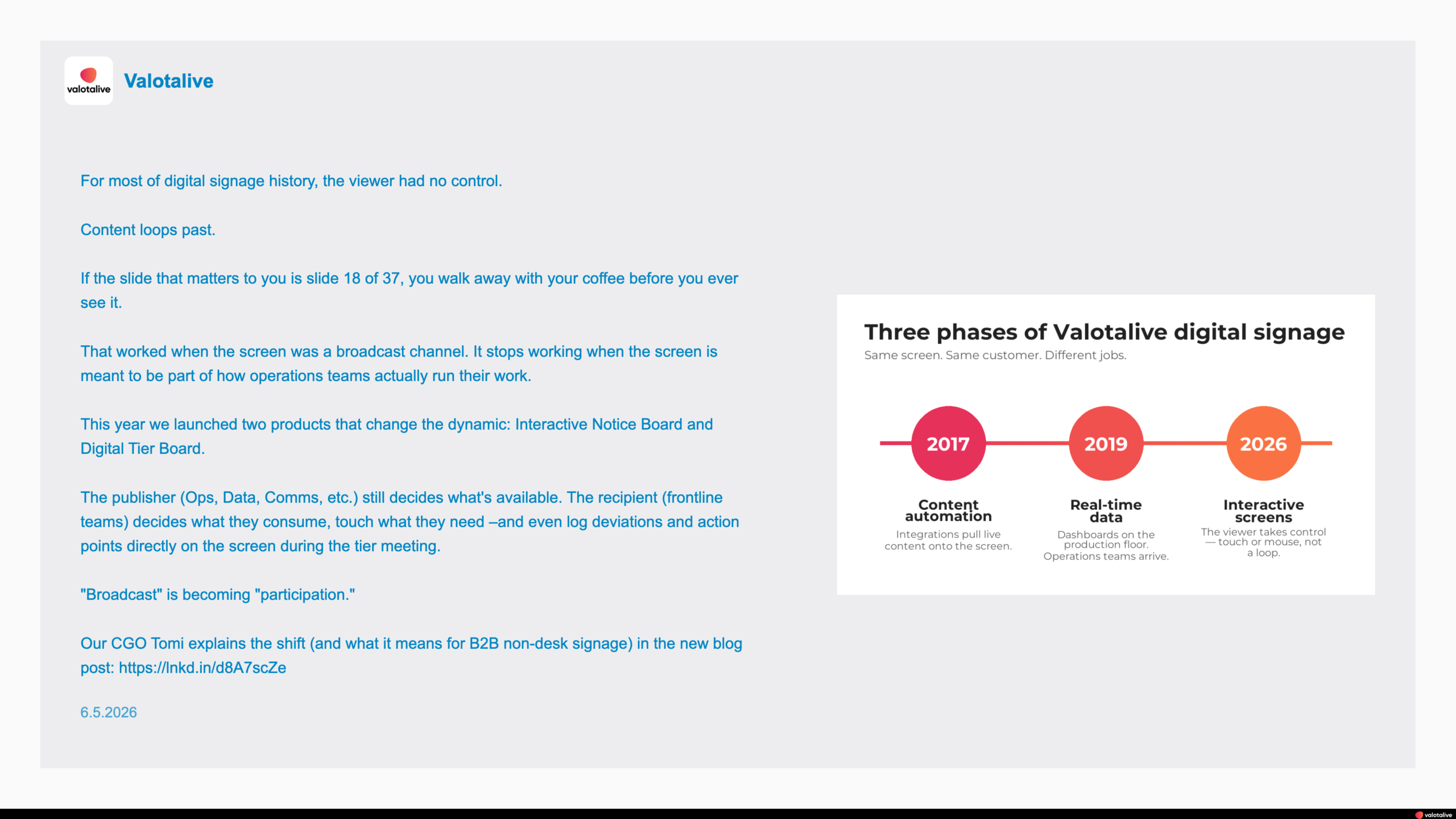
- Company logo and name pulled automatically from your LinkedIn page.
- Full post text. One app-level setting decides how long posts display: a larger font with cut text, or the entire text shrunk to fit.
- Post images and the post date displayed with every post.
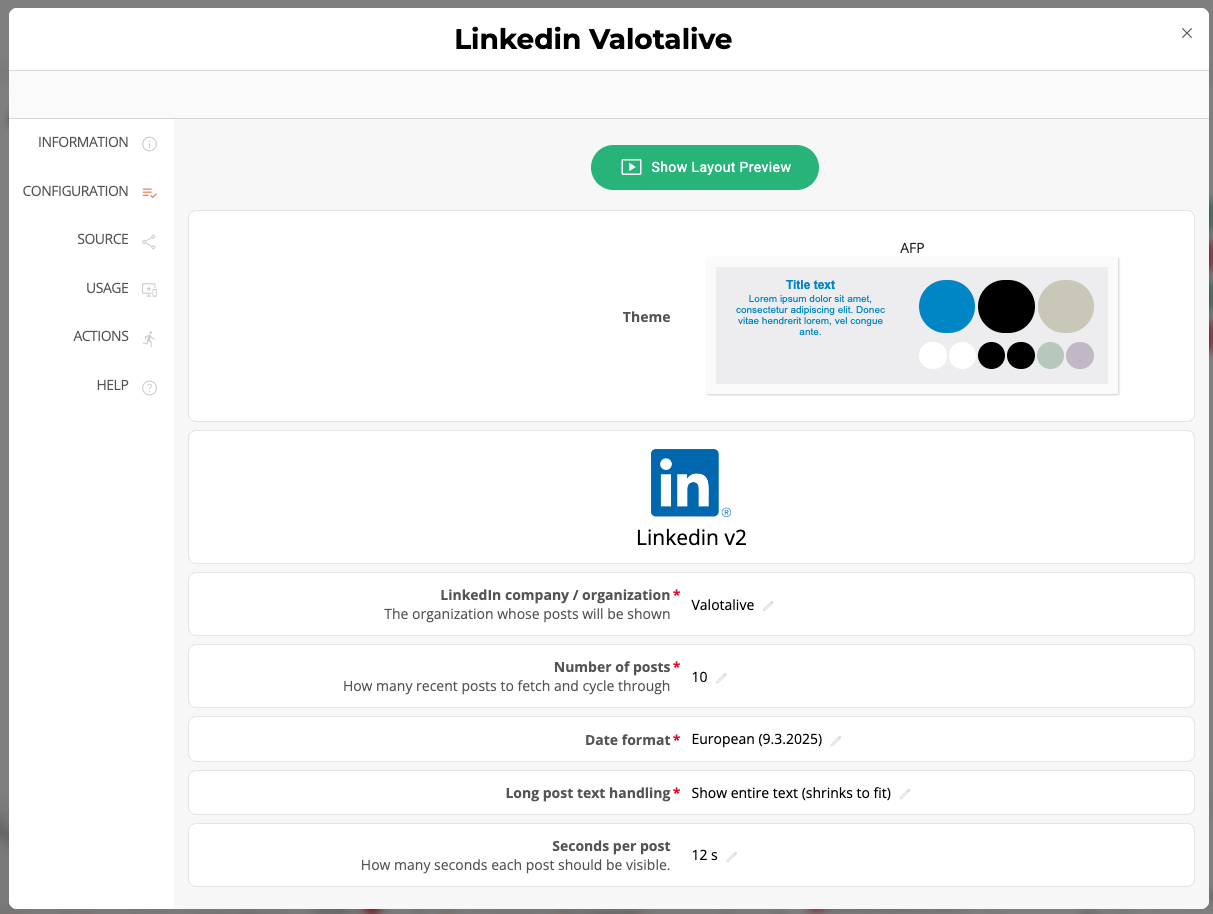
Control what cycles and for how long
- Choose how many recent posts rotate on screen (default 5).
- Choose how many seconds each post stays on screen (default 15 s). One app-level setting applies to all posts.
- Pick the date format your audience expects (European or US style).
Publish to any screen, alone or in a Flow
- Add the app directly to a single display, or into a Valotalive Flow, a content rotation that cycles your chosen apps on the same screen, one at a time.
- Mix LinkedIn posts with dashboards, news, and other apps in one rotation.
- Pair it with the Instagram app for a complete social wall.
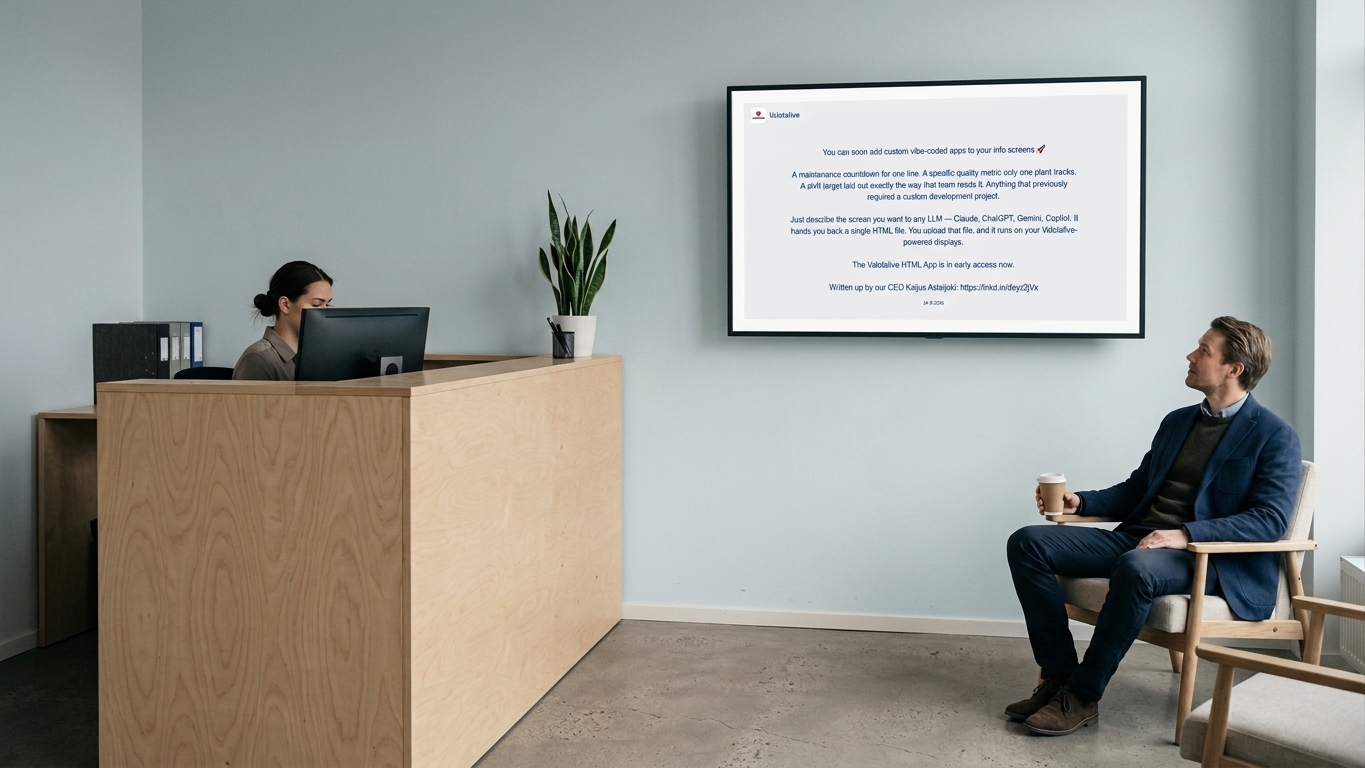
Put Your Employer Brand on Every Screen

Engaged employees
Employees see company wins, new colleagues, and milestones without opening LinkedIn.

Visible employer brand
The recruiting story you publish online is seen where candidates visit and employees work.

A lobby that speaks
Reception screens greet visitors with your latest news instead of a static logo.

Zero upkeep
Posts flow to screens automatically: publish once on LinkedIn, done.
Where the LinkedIn App Fits
The LinkedIn app runs on the same platform as Valotalive’s other social apps. Combine them freely on the same screens, or rotate them with dashboards and announcements in a Valotalive Flow. Together they make your employer brand part of digital signage for corporate communications.
Workplace social wall
Build a LinkedIn social wall alongside the Instagram app, Microsoft Viva Engage and Employee Wall for your social presence in one rotation.
Lobby & reception screens
Show visitors and candidates your latest company news, wins, and open roles as they walk in.
Break rooms for non-desk teams
Reach factory, logistics, and field employees who don’t scroll LinkedIn during the workday.
Milestones & recognition
Anniversaries, awards, and new-hire welcomes you post on LinkedIn reach every site at once.
Frequently Asked Questions
Posts from your LinkedIn company page. The account used to connect must have Admin access to that page. Personal profile posts are not displayed.
In the Valotalive Dashboard, go to My Account – Service Integrations – LinkedIn and click Authorize. Log in with a LinkedIn account that administers your company page, then activate the LinkedIn app under Apps and select your page. Step-by-step instructions: How to display LinkedIn company posts on your screens.
Each post shows your company logo and name, the post text, the post image when there is one, and the post date. One app-level setting decides how long posts display: a larger font with cut text, or the full text shrunk to fit.
You choose. By default the app cycles through your 5 most recent posts at 15 seconds per post. Both are adjustable in the app’s configuration, and each setting applies to all posts. The app checks your company page for new posts every 15 minutes.
LinkedIn access tokens expire periodically. Go to My Account – Service Integrations – LinkedIn and click Authorize to reconnect. Also check that the correct company page is selected in the app’s configuration.
Yes. Add the LinkedIn app to a Valotalive Flow, a content rotation that shows your chosen apps on one screen one at a time, to cycle it with dashboards, announcements, and other content, or give it a dedicated screen.