
User Management and Access Control
Role-based access control (RBAC) for digital signage. Assign admin roles and user permissions by organizational group, connect single sign-on through Okta, Microsoft Entra ID or Google, and let every site manage its own screens, without reaching the rest of the network.
- Try with laptop
- No CC needed
- Cancel any time

What You Can Control
Invite People Into a Group, Not Into Your Network
Invite an admin by email from My Company and assign them to an organizational group as you do it. That group decides what they can see and change from their first login. No need for per-user configuration, and no cleanup afterwards.
Digital signage user management starts at the invitation, not after it. There is no shared admin login to hand round, and nothing to rotate later.

Mirror Your Org Chart in the Platform
Build groups and sub-groups that match how the company actually runs: by site, plant, department, or shift. A new user can be dropped into a default group automatically.
Rights flow down the tree. A group’s admins reach their own group and everything beneath it, and never the levels above. There is no flat list of administrators who can all reach all 400 screens.
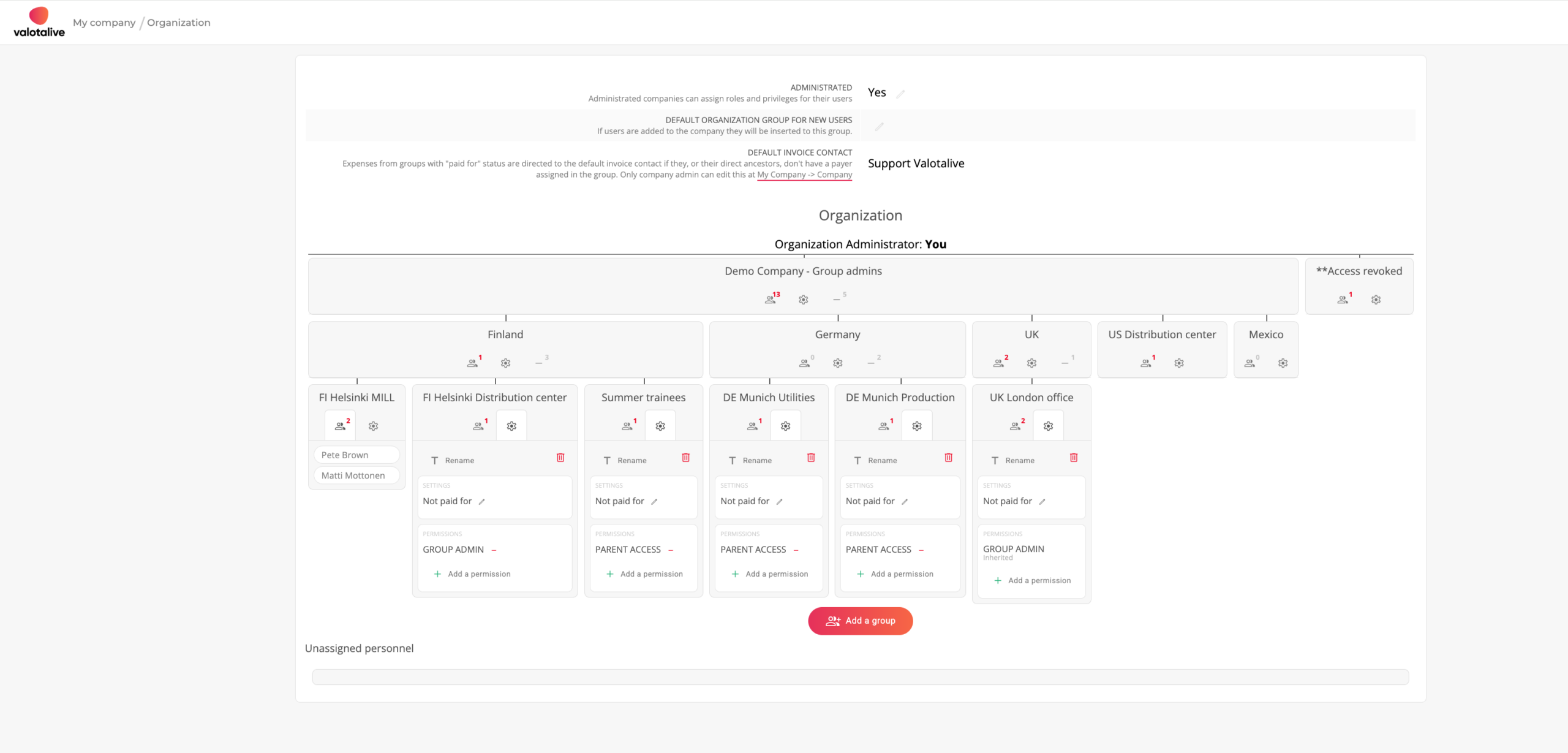
Move a Person, Not Ten Settings
Permissions belong to groups, and users inherit them. Drag someone from Unassigned into a group, or between groups, and their access updates automatically.
Without re-auditing individual accounts every time somebody changes role or site.
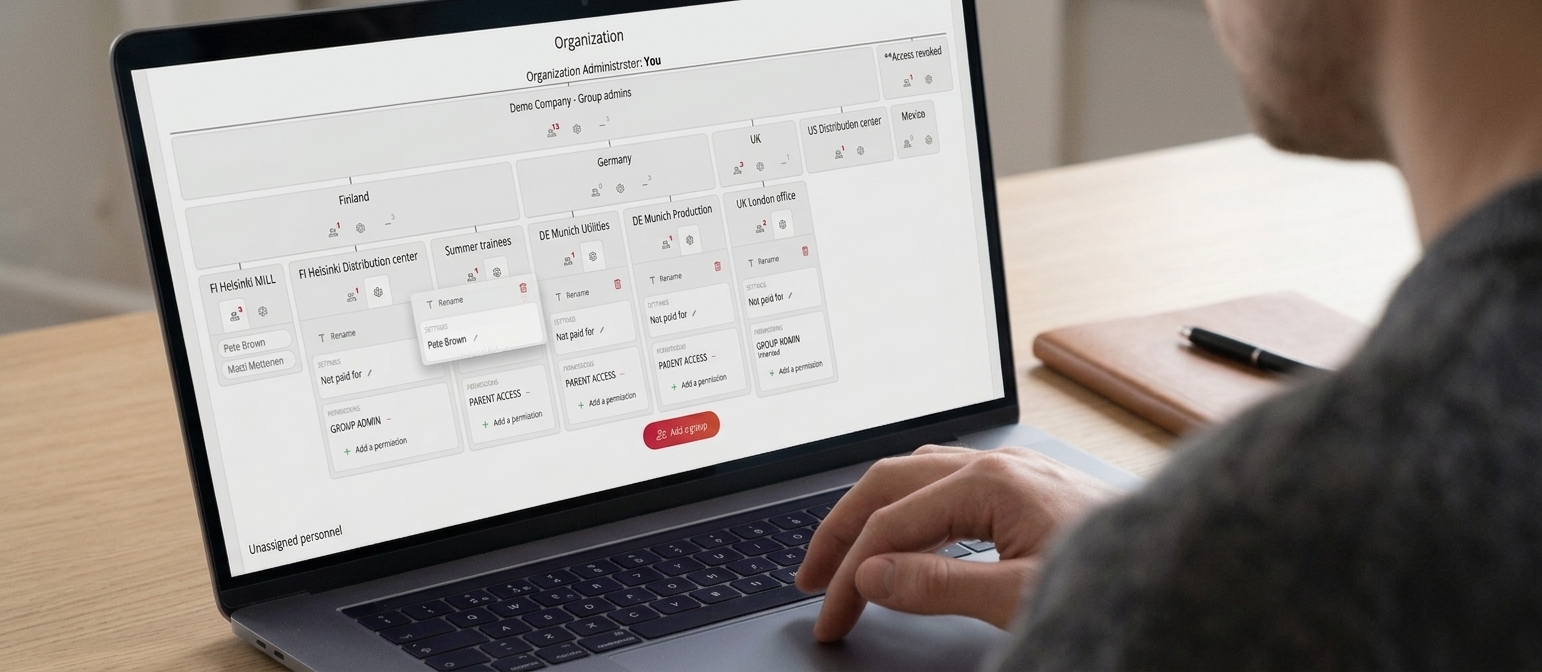
Give Each Admin the Reach They Need
Four levels cover most structures: Organization Administrator (one per company, full control of the organization), Admin (the whole company), Group Admin (their group, its sub-groups, and sibling groups), and Peer Admin (their own and peer groups).
On top of those, discrete permissions are granted per group: invite users, move users, edit permissions, manage display groups, order hardware. Digital signage admin roles that match how responsibility is actually distributed. See the full list in user roles and permissions.
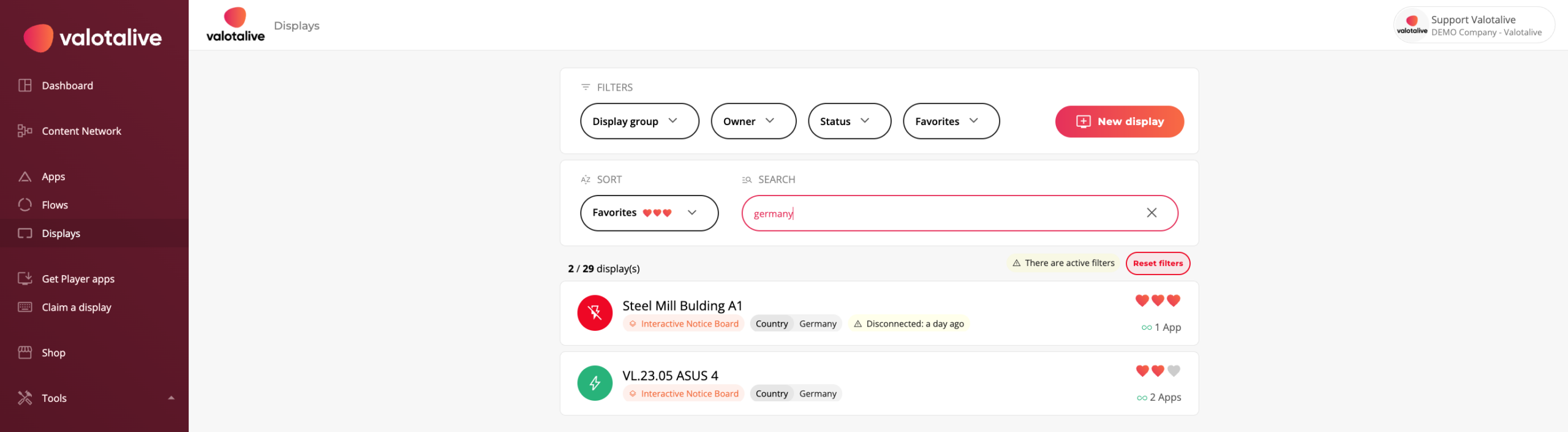
Let Publishers Publish Without the Dashboard
Valotalive separates Administrators, who configure apps, flows, and displays in the admin dashboard, from Content Managers, who publish to screens through My Content.
A shift supervisor can post to their own line’s display without holding any admin rights on the network, so no safety notice has to be routed through IT.

Set Up Access in Three Steps

1. Build Your Groups
Create organizational groups that match your sites, plants, or departments, and nest them as deep as your structure needs.

2. Set Permissions Per Group
Add permissions to the group rather than to individuals. Every member of the group inherits them.

3. Assign Your People
Drag users into the group that matches their role. Their access applies immediately, and changes when you move them.
Works With Your Identity Provider
Single sign-on for digital signage over SAML 2.0. Accounts and offboarding stay in the identity provider your IT team already runs, and both service-provider and identity-provider initiated login flows are supported. Available as an add-on. See SAML 2.0 single sign-on for the full security picture.
Okta
- SAML-based SSO
- Okta Verified integration
- SP- and IdP-initiated login
Microsoft Entra ID
previously Azure AD
- SAML-based SSO
- Central account provisioning
- SP- and IdP-initiated login
- SAML-based SSO
- Google Workspace accounts
- SP- and IdP-initiated login
Frequently Asked Questions
Yes. Access is granted by role and by organizational group rather than per user. Four levels cover most structures: Organization Administrator, Admin, Group Admin and Peer Admin. Discrete permissions such as invite users, move users, edit permissions and manage display groups are added on top, per group. Every member of a group inherits that group’s permissions.
One. Organization Administrator (also called Super Admin) is the only role limited to a single user. It has full control of the organization, including adding and removing organizational units. Every other permission can be assigned to as many people as you need.
No. A Group Admin can use, view, and modify the apps, flows, and displays of their own group, its sub-groups, and sibling groups. Groups higher in the hierarchy stay out of reach, for both viewing and editing.
No. Valotalive has two user types. Administrators manage the platform in the dashboard; Content Managers publish to screens through the My Content app and need no dashboard admin permissions.
Okta, Microsoft Entra ID (previously Azure AD), and Google, over SAML. Both service-provider initiated and identity-provider initiated login flows are supported. When SSO is in use, users are provisioned through the identity provider rather than the in-app invitation flow.
Move them into the group for that site. Access is determined by group membership, so changing the group automatically updates what they can reach. There is no per-user permission list to edit.
Yes. Valotalive support handles ownership transfers on request. If the app authenticates to an external service such as Power BI or Google Slides, the new owner re-authorizes it after the transfer so content keeps updating.
