
Digital Signage Admin Dashboard
Manage digital signage screens, content, and users across every site from a single cloud console. See what’s playing, push updates remotely, and keep your entire digital signage network running — without visiting a single screen.
- Try with laptop
- No CC needed
- Cancel any time

How the Admin Dashboard Works
See What’s Playing Where — and Why
The Content Network gives you a visual map of every connection in your digital signage setup — which apps feed which flows, which flows run on which screens.
Click any element to highlight its connections: select a display to see its flows, subflows, and apps; select an app to trace it to every flow and screen it reaches. Navigate directly to any item to make changes — without clicking through menus or guessing what’s assigned where.

Group Screens by Site, Department, or Shift
Organize displays into groups using tags — by factory site, office floor, department, or shift pattern. Assign content flows to groups instead of individual screens.
When a new screen joins a group, it inherits the right content automatically — without configuring each display one by one.
Manage Every Screen Remotely
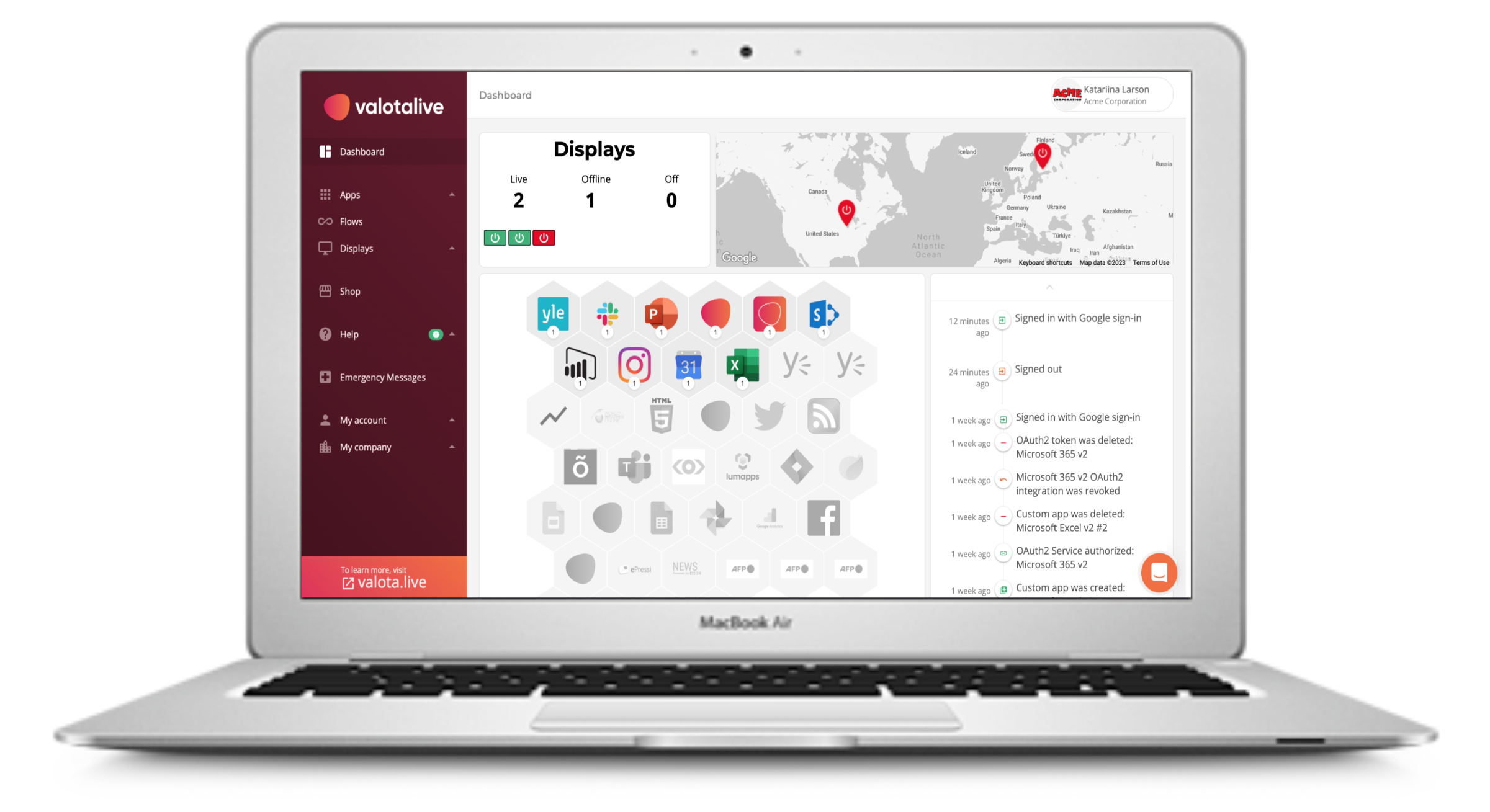
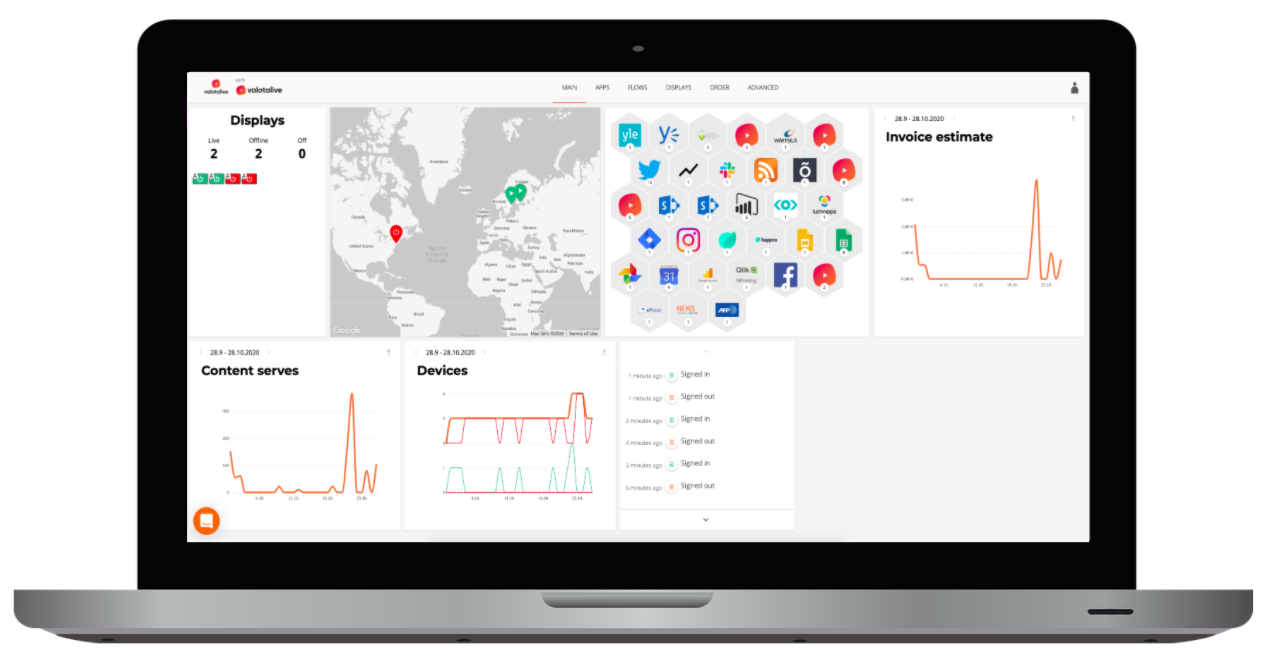
Remote display management from anywhere: push content updates, change schedules, preview what’s on screen, temporarily turn displays off, and monitor device status across all locations.
Digital signage fleet management from your browser. Full digital signage device management — without sending someone to check on a screen in another building or another country.

Control Who Manages What
Four digital signage admin roles with different permission levels: Super Admin owns the account, Admins manage setup and content, Content Managers publish to screens, My Content Users contribute their own content.
Add users, set permissions, create admin groups — without giving everyone the keys to the entire system. SSO via SAML 2.0 (Entra ID, Google, Okta) for enterprise deployments. Fine-grained permissions let you control exactly what each user group can see, edit, and manage — down to individual display groups and organizational units.
Launch in Minutes with Just Your Laptop

1. Claim Your Screens
Order a pre-configured managed device, or install the player app on Chrome OS, Windows, Samsung Tizen, or Android. Enter the PIN to pair.

2. Organize Into Groups
Tag displays by site, department, or purpose. Assign content flows to groups — new screens inherit the right content automatically.

3. Manage From Anywhere
Update content, monitor device status, and control your entire digital signage network from the cloud dashboard — no site visits needed.
Runs on Every Major Platform
One dashboard manages all platforms. Mix and match devices across your network.
Chrome OS
Recommended
- Managed devices shipped globally
- Zero-touch enrollment
- Most secure option
Windows
- Windows 10/11 PC or mini PC
- Use existing hardware
- Kiosk mode available
Samsung Tizen
- No external player needed
- Samsung commercial displays
- Built-in SoC player
Android
Coming soon
- Tablets and Android TV
- Cost-effective scaling
- Google Play distribution
Frequently Asked Questions
There’s no limit. The same dashboard manages 5 screens or 5,000. Use Display Groups to organize screens at scale.
Yes. Use Admin Groups to assign specific permissions — one team manages factory floor screens, another manages office lobbies. Super Admins see everything.
Yes. The cloud dashboard works from anywhere. Group screens by location and manage content per site, or push the same content globally.
Content that can be cached is stored locally on the device, so screens continue playing without interruption. When the connection is restored, they sync automatically. If enabled, the on-screen status bar changes from green to red — visible to anyone near the screen. Note: some content types like Power BI require a live connection and can’t be cached.
Setup takes minutes: install the player app, power on, enter the PIN. No network configuration beyond internet access. See setup guides for each platform.
