
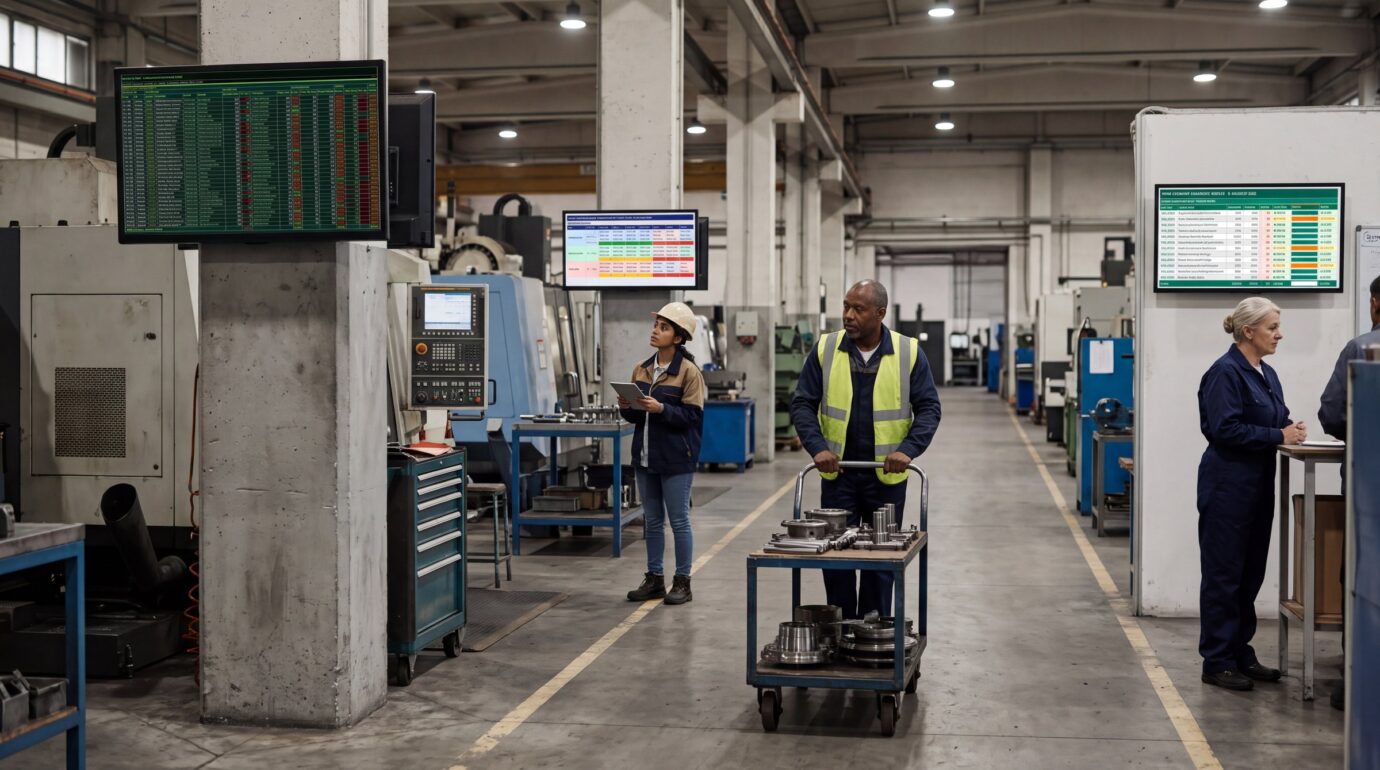
Live data on workplace screens means numbers that come straight from the systems a team already uses, such as Power BI or Excel, and update on their own on screens where people work. Nobody exports a PDF, prints a report or rebuilds the figures in PowerPoint. Operators, technicians and warehouse staff see the same current numbers as management, without logging in to anything.
Below are seven examples from factories and distribution centres. Three come from Valotalive customers ATS, Rexel and Valmet Automotive. Four are demo screens built with the Excel Table Data app on example data from a fictional company. For each one you see what is on the screen, who stands in front of it, where the data comes from, how fresh it really is and what it replaced.
The seven examples:
- Machine status for maintenance teams (ATS)
- OEE by line, machine and shift (demo)
- Distribution centre control tower (Rexel)
- Part quality against target (demo)
- Incoming inspection and supplier scorecard (demo)
- Shift plan and headcount (demo)
- Accident-free days (ATS, Valmet Automotive)
What Do These Screens Replace?
- A laptop plugged into a TV with the report open in a browser. It stops when the laptop updates, sleeps or logs out, and every screen needs its own laptop.
- Power BI publish to web. Quick, but it makes the report public on the internet.
- Screenshots pasted into PowerPoint. Yesterday’s numbers, rebuilt by hand every day. Both ATS and Rexel worked this way before.
- Printouts and hand-updated boards. Out of date as soon as they go up.
How Does a Maintenance Team See Which Machines Are Down?
Advanced Technology Services (ATS) maintains production machinery in the US, Mexico and the UK for manufacturers such as USG, Kellogg’s and Benjamin Moore. Most of its 2,900 employees are maintenance workers inside those customer factories, and they rarely check email or the intranet. Since 2021, ATS has placed Valotalive screens next to paths of travel and work areas, and within a few months they ran in 50 of its 100 customer locations.
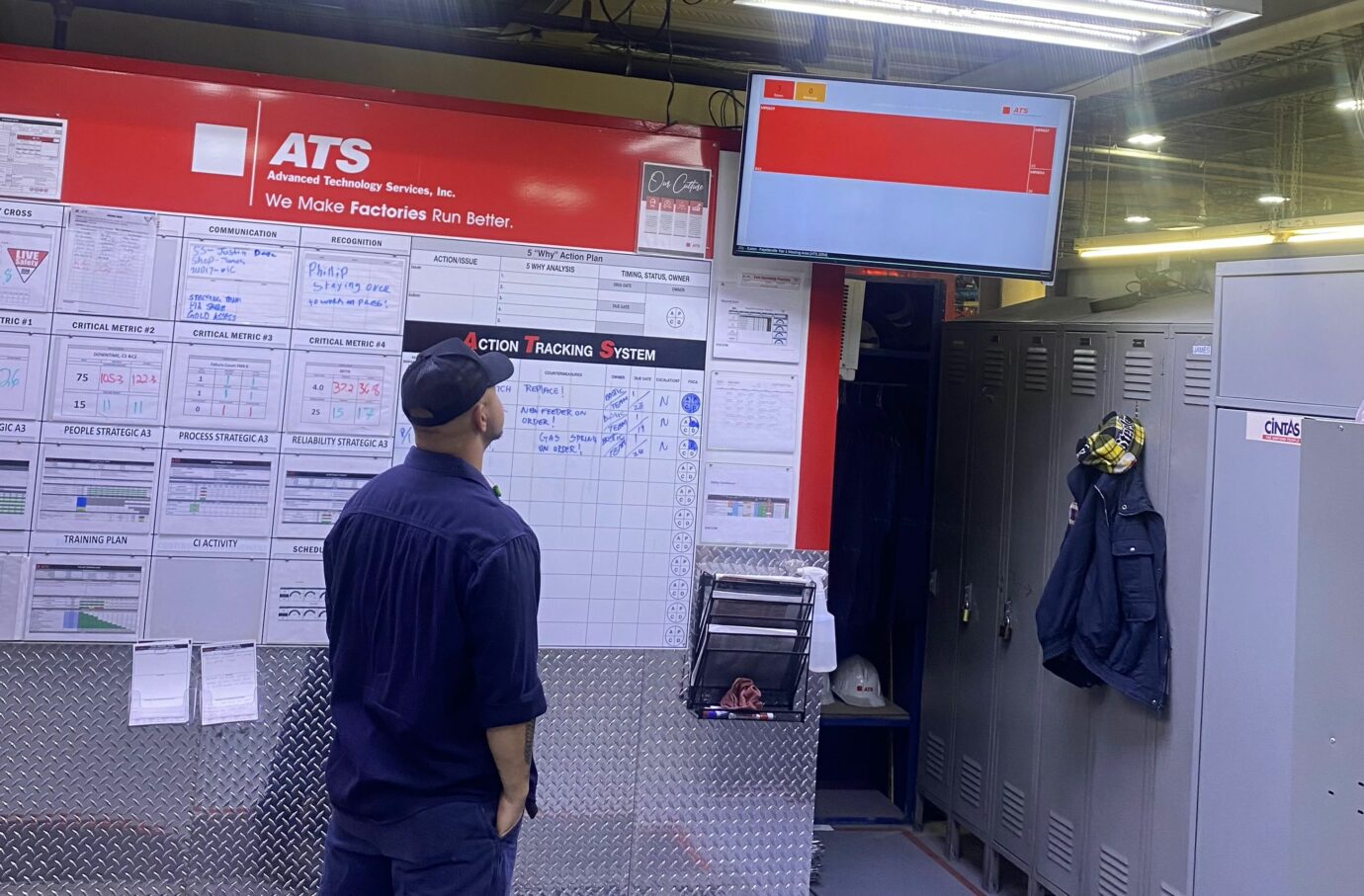
- On screen: A Power BI report called Equipment Status Monitor, with the status of all of the customer’s machinery.
- Who sees it: ATS technicians in each customer factory, on their way between jobs, and site managers, who put reports up right before the daily morning meeting.
- Data source: Power BI, with report filters chosen once per site so each factory sees only its own machines.
- How fresh: Valotalive fetches the report on the interval you set. The screen can only be as current as the Power BI dataset behind it: if the dataset refreshes once a night, the screen shows last night’s status.
- What it replaced: PowerPoint slides that site managers updated and printed by hand. Holly Mosack, Director of Internal Communications at ATS, says people would rather look at a screen than at black-and-white printouts with grease prints that everyone assumes are six months old.
- What the team can do now: Technicians see which machines need them without asking anyone or logging in. ATS customers see the current status of their own machinery instead of the previous day’s slides, and some site managers have asked for screens in break rooms next.
“Not having to regularly update and print out PowerPoint slides has saved our site managers so much time. The timely portion is figuring out the filters in PowerBI just once.”
Holly Mosack, Director of Internal Communications, ATS
What Does a Live OEE Screen for a Production Line Look Like?
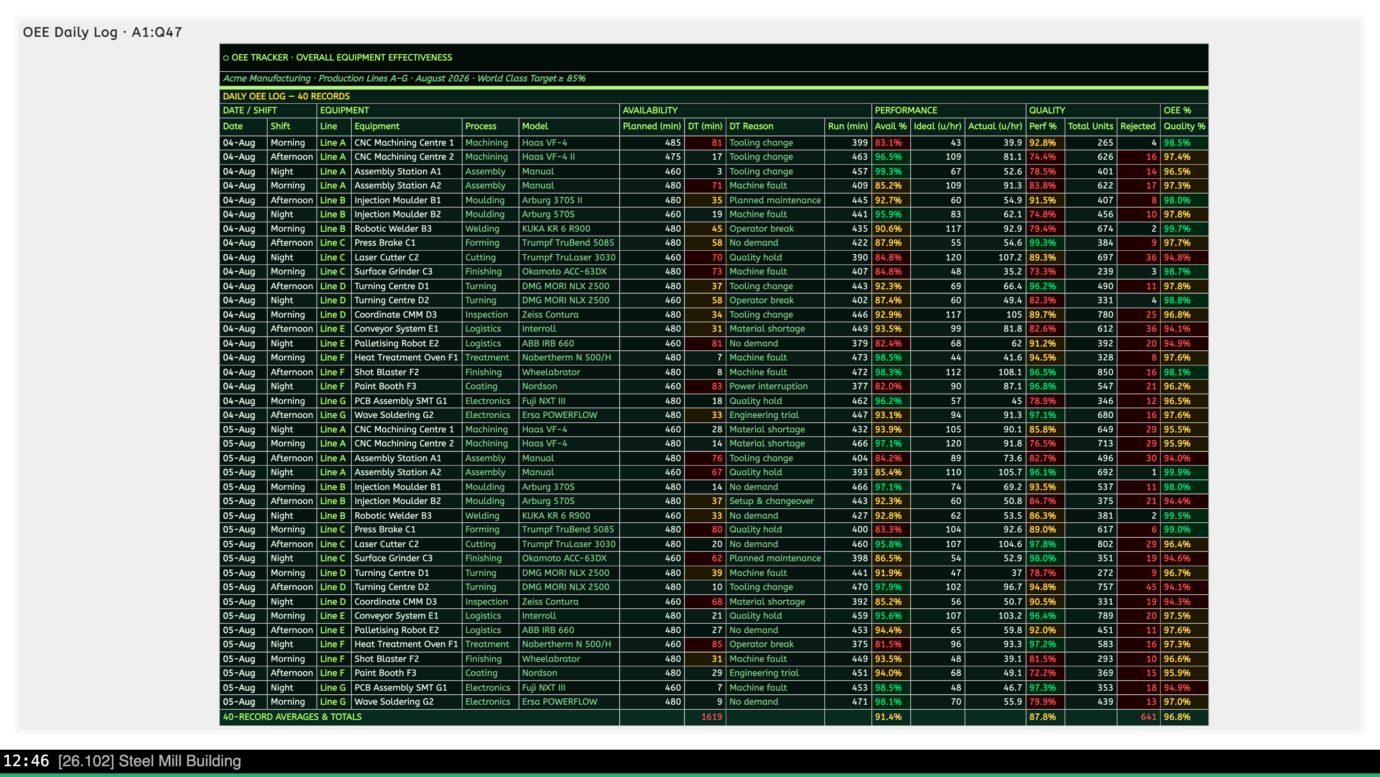
- On screen: Two days of shifts on lines A to G. For each machine: planned and run minutes, downtime minutes and the reason for each stop (tooling change, machine fault, material shortage, quality hold, operator break, planned maintenance, power interruption), then availability, performance, quality and the totals at the bottom. Red cells mark the long stops and the results below target.
- Who sees it: Line leaders and operators at the start of a shift, and the production manager walking the floor.
- Data source: An Excel workbook in OneDrive or SharePoint, shown with the Excel Table Data app. The cell colours from the file stay on screen, so the red cells are the first thing anyone sees.
- How fresh: The screen picks up changes about every 15 minutes, so it is as current as the last time someone, or a script, saved the file. If the floor needs it faster, ask Valotalive: a shorter refresh cycle can be looked at case by case.
- What it replaces: A printout of yesterday’s numbers on the notice board, or the same spreadsheet open on one laptop that never reaches the floor.
- What the team can do now: See at the start of a shift which machine lost the most time on the last one, and why. On the demo screen, the paint booth on line F lost 83 minutes to a power interruption on the night shift.
What Does a Distribution Centre Control Tower Show on Its Screens?
Rexel is an electrical supplies distributor that visualises its operational data in Power BI. It has been running Valotalive screens since 2021, when it had 80 screens in 10 locations in Central Europe, including one large screen in the control tower of its distribution centre.
- On screen: Live Power BI reports with operational data. On the control tower screen: open retentions and potential errors. Sales and business figures and company news run on the screens around the warehouse.
- Who sees it: Control tower operators, and everyone who walks across the warehouse.
- Data source: Power BI, as one central source instead of several systems checked by hand.
- How fresh: Live reports from Power BI, fetched on the interval Rexel sets. Before, the screens showed the previous day’s figures.
- What it replaced: An expensive on-premise screen system that was hard to integrate. Thomas Grüner, Manager WMS Tactical Board at Rexel, says the team ended up building PowerPoint presentations by hand and showing already outdated data.
- What the team can do now: Operators keep track of open retentions and spot potential errors during the shift, from one central source instead of checking several systems by hand.
“But probably the best thing is that when employees walk across the warehouse, they simply can’t avoid seeing those reports. This has absolutely had a huge effect on our productivity and the quality of our work from a customer’s point of view!”
Thomas Grüner, Manager WMS Tactical Board, Rexel
Read the full Rexel case study.
How Can a Quality Team Show Pass Rates by Part on the Floor?
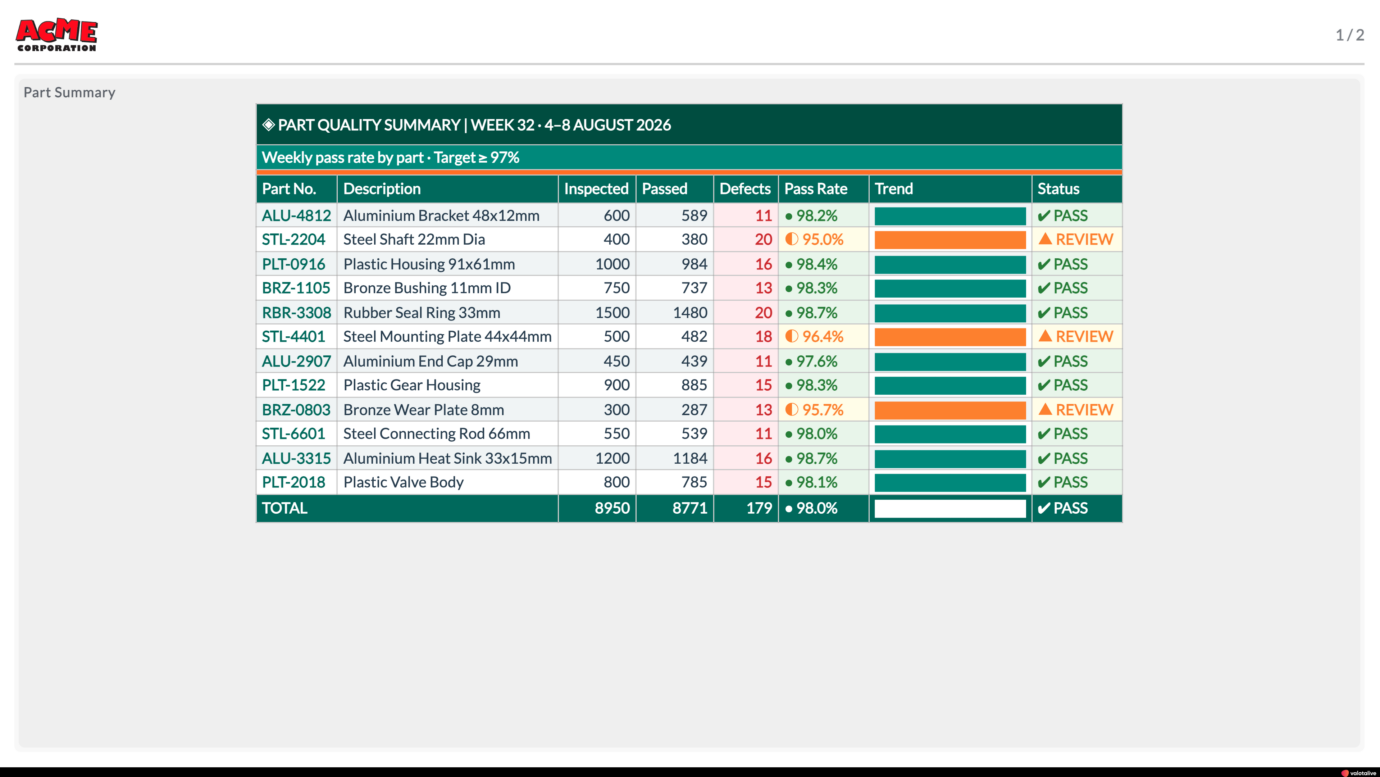
- On screen: For each of twelve part numbers, from aluminium brackets to plastic valve bodies: units inspected, passed and rejected this week, the pass rate against the 97% target, a trend bar and a PASS or REVIEW status. On the demo screen three parts are below target and show REVIEW. The week’s total is 8,950 parts inspected, with a 98.0% pass rate.
- Who sees it: The quality team and the operators who make the parts, at the line.
- Data source: An Excel quality tracker, shown with the Excel Table Data app.
- How fresh: About 15 minutes after the file is saved.
- What it replaces: A weekly quality report that reaches the line after the week is over.
- What the team can do now: Operators see which parts are below target and need review while they are still making them.
What Does an Incoming Inspection and Supplier Scorecard Screen Look Like?
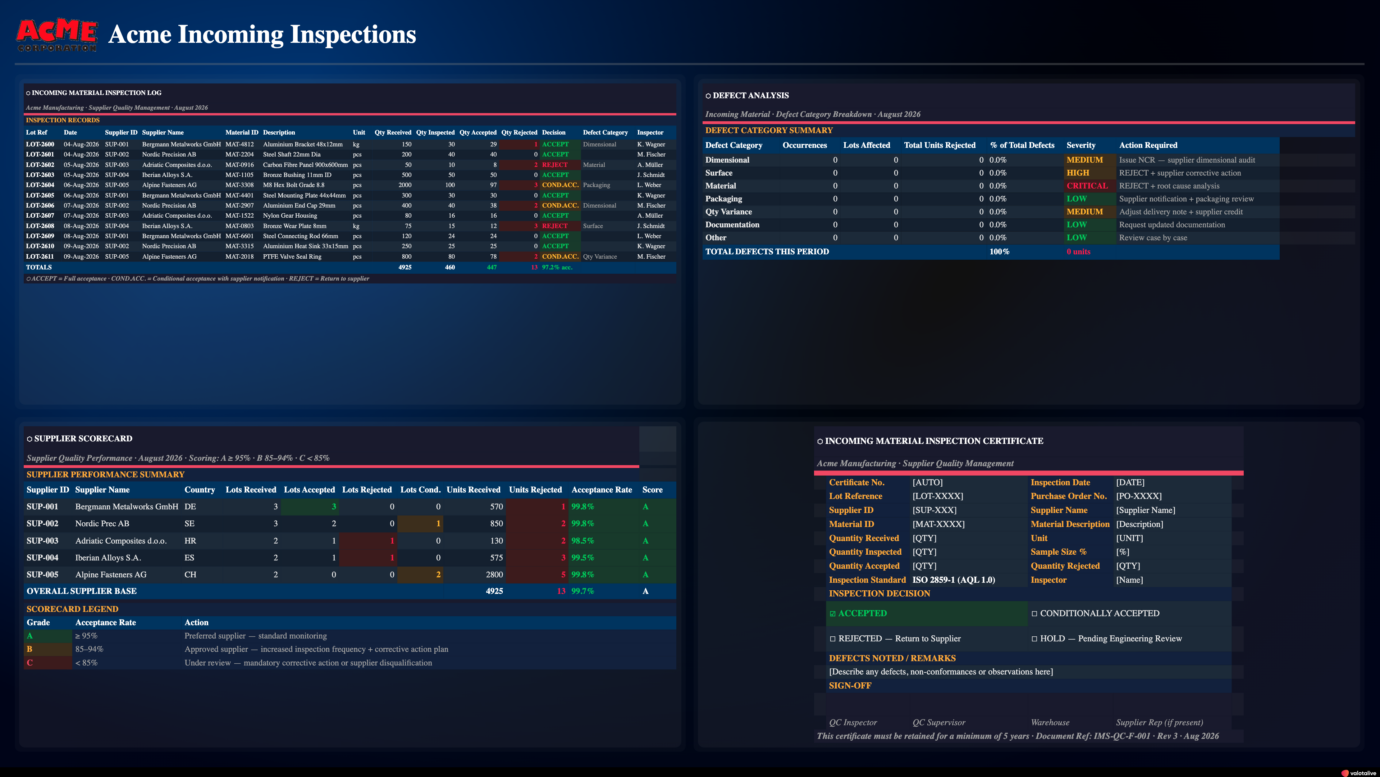
- On screen: The incoming material inspection log (lot, supplier, material, quantities received, inspected, accepted and rejected, decision and inspector), defects by category and severity with the action each one triggers, and a supplier scorecard that grades every supplier A, B or C by acceptance rate: A at 95% or above, B from 85 to 94%, C below 85%.
- Who sees it: Goods-in inspectors and the supplier quality team, where material arrives.
- Data source: Four ranges of one Excel workbook, each shown as its own area of the screen with the Excel Table Data app.
- How fresh: About 15 minutes after the file is saved.
- What it replaces: A supplier scorecard that lives in a monthly spreadsheet and never reaches goods-in.
- What the team can do now: Goods-in staff see which lots were rejected and which suppliers are slipping, right where the material arrives.
How Do You Show a Shift Plan on a Screen?
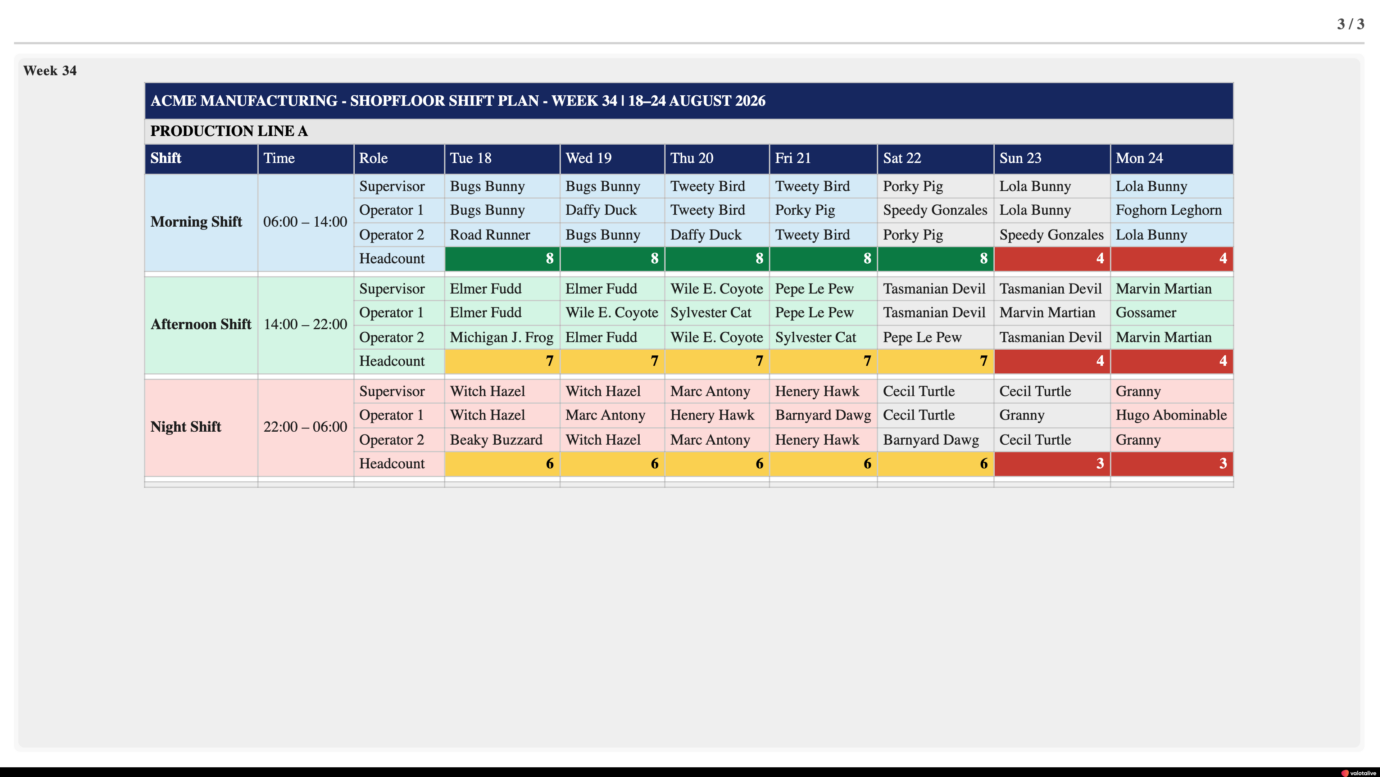
- On screen: Three shifts a day, starting at 06:00, 14:00 and 22:00, for one line, with the supervisor and operators named for each day and the headcount per shift coloured green, amber or red. On the demo screen the weekend shifts drop to four and three people and turn red.
- Who sees it: Supervisors and operators at shift change, and anyone checking who is on the next shift.
- Data source: The Excel roster the supervisor already keeps.
- How fresh: About 15 minutes after the file is saved, so a swap reaches the screen without anyone printing a new roster.
- What it replaces: A printed roster on the wall, reprinted after every swap.
- What the team can do now: Everyone sees the current roster and which shifts are short-staffed, without asking the supervisor.
Which Safety Numbers Work Best on a Live Screen?
The simplest one is a count of accident-free days. ATS used to update that number by hand at site and corporate level. Now the Accident Free Days Counter app counts on its own. It is a number worth showing: ATS has a 50% lower recordable incident rate than the industry average, and some of its sites have been accident-free for 900 days straight.
- On screen: The number of days since the last incident at the site.
- Who sees it: Everyone at the site. Corporate sees the same figure.
- Data source: The counter itself. Authorized staff log a new incident from a phone or laptop, which resets the count. Each site has its own counter.
- How fresh: Always current. The count changes every day on its own, and resets only when someone logs an incident.
- What it replaced: Figures updated by hand at site and corporate level.
- What the team can do now: Nobody counts or reposts the number, and every site shows the same figure as head office.
What comes next: the meeting screen
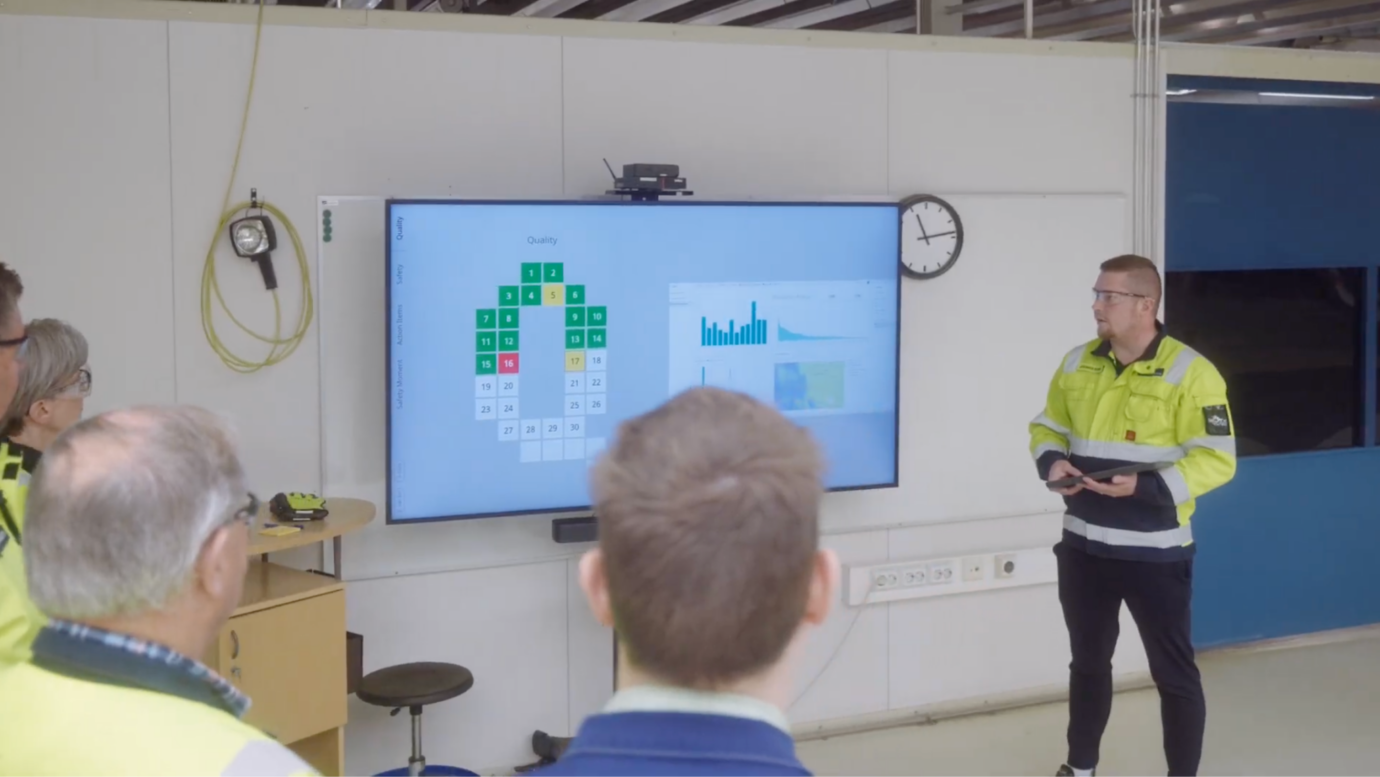
Valmet Automotive, a contract manufacturer with 66 Valotalive screens at its plant in Uusikaupunki, Finland, is testing the interactive Digital Tier Board for its shop floor meetings. It brings the Power BI production reports, the Safety Cross and the accident-free days counter onto one screen, instead of a whiteboard on the wall and Power BI on a laptop that someone has to plug in and log into. Joonas Kuru, quality engineer and the plant’s Valotalive administrator, says everything is on one screen, tailored to each shift or team, with no separate whiteboard and no separate display. When the case study was written, the plant had gone 473 days without an accident.
Read the full Valmet Automotive case study.
What Do the Best Live Data Screens Have in Common?
- They sit where people already walk and work, not in a meeting room.
- They show data from the system the team already uses, so nobody rebuilds it for the screen.
- They show one team its own numbers, filtered to its line, site or shift, next to a target.
Wärtsilä ran this at scale as early as 2018, with data from its EHS and CRM systems on about 300 screens in more than 70 countries.
To make the numbers readable from across the floor, see how to design dashboards for shop floor screens. For every supported data source and how often each one refreshes, see live data for digital signage. To connect your own data, see the Power BI app and the Excel Table Data app. For the Power BI steps, see how to share Power BI dashboards and reports on screens. For production KPIs on every factory screen, see production dashboards.
You can try any of these examples with your own Power BI report or Excel file on a laptop before you put up a screen.