
Data visualization on digital signage means showing KPIs and metrics as charts, numbers and status colours on screens in production and warehouses, so operators and team leaders who don’t analyze numbers every day can understand them at a glance. A dashboard built for a wall screen follows different rules from one built for a laptop: people read it from several metres away, for a few seconds, without a mouse.
This guide covers how to design dashboards for shop floor and warehouse screens: how big text must be, which charts work, how many KPIs fit on one screen, how to turn an existing Power BI or Excel report into a screen view, and how often the data should refresh.
How Is a Dashboard on a Wall Screen Different From One on a Laptop?
A laptop dashboard is built for one person who sits close, has time and can click. A wall screen is the opposite:
- Distance: people read it from several metres away, often in passing, so small labels and thin lines disappear.
- Time: most people glance at it on their way past. The key number must be clear in a few seconds.
- No interaction: nobody can hover or click, so tooltips, slicers and drill-downs are out of reach. Anything hidden behind a click is invisible.
- One audience: a screen on line 3 serves line 3. Company-wide totals belong elsewhere.
So the job is not to copy the analyst’s report onto a TV. It is to pick the few numbers one team needs and make them readable from where that team stands.
How Big Should Text and Numbers Be on a Shop Floor Screen?
Size text by the distance to the person farthest away who needs to read it. A common rule of thumb is a font size of at least twice the viewing distance in feet: about 20 pt for a screen 10 feet (3 metres) away. Our best practices for digital signage content and design cover fonts and layout in more detail.
Two practical checks help more than any formula. First, keep each screen view simple: on the Digital Tier Board, Valotalive allows up to two apps per tab, which keeps content readable from 5 to 10 feet (1.5 to 3 metres) on the shop floor. Second, stand where the team stands and read the screen before you roll it out.
Which Chart Types Work Best on a Screen?
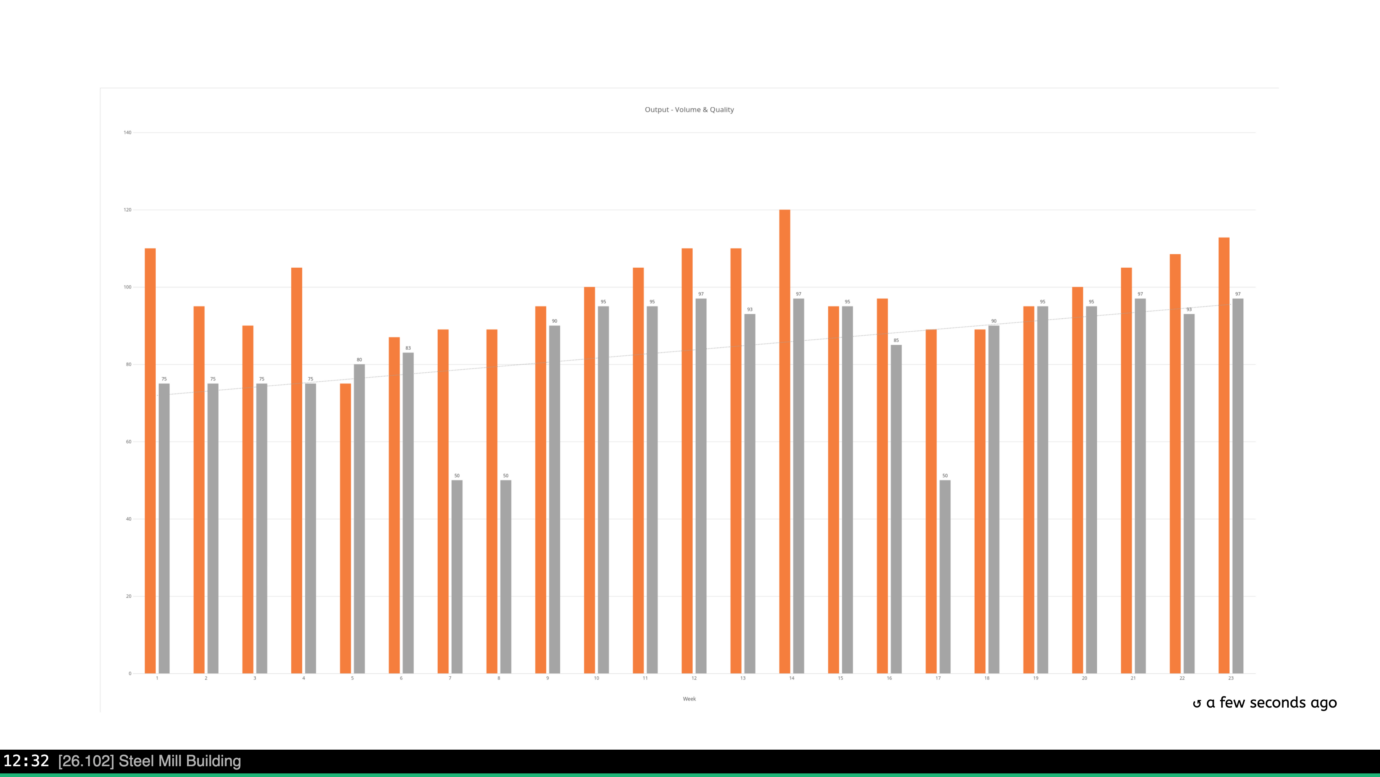
Choose charts that people can read by position and length, not by angle or area. In their classic study of graphical perception, Cleveland and McGill (1984) found that people compare values most accurately when they are placed along a common scale, as in bar and line charts, and less accurately when they have to judge angles or areas, as in pie charts.
- One big number against a target: the best choice for a single KPI, such as today’s output or OEE.
- Bar chart: to compare lines, shifts, sites or weeks.
- Line chart: to show a trend over time, with the target as a reference line.
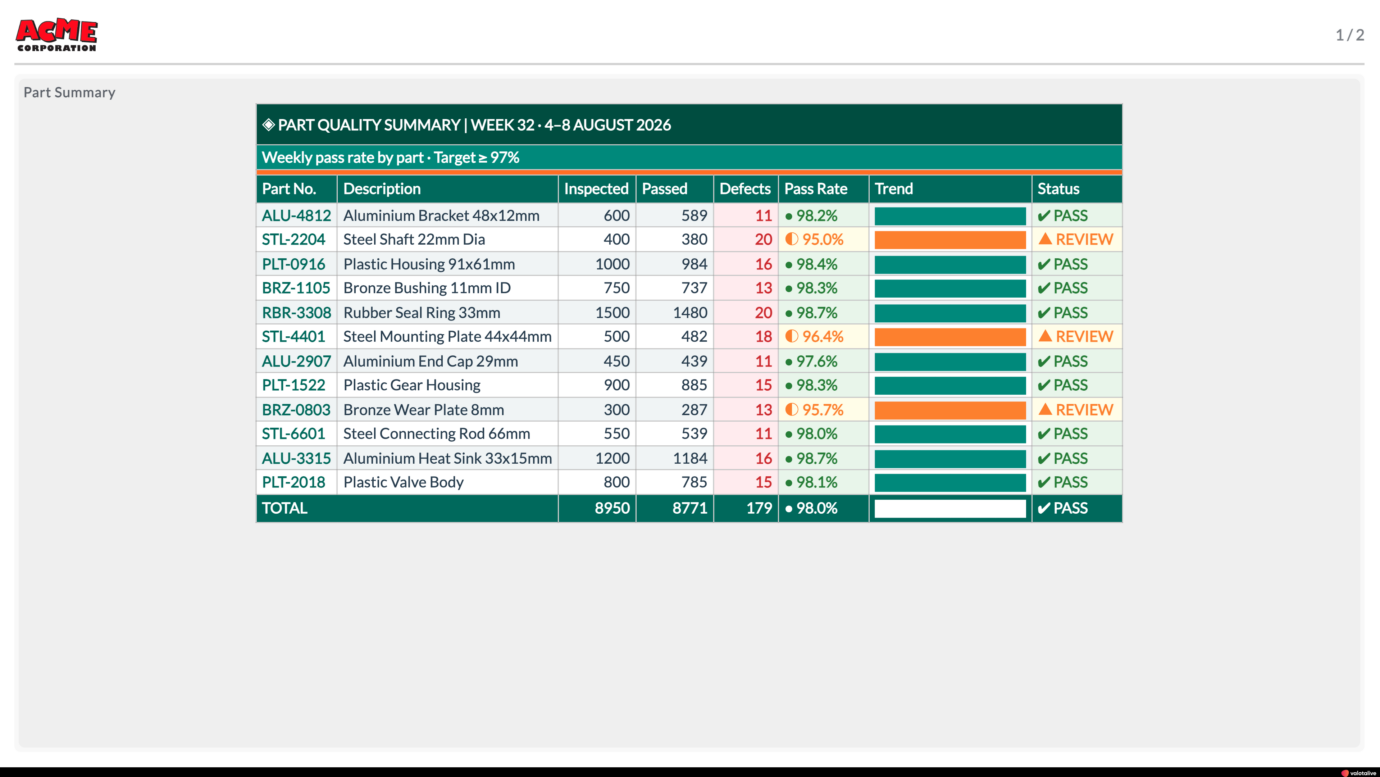
- Status colours: red, amber and green per machine, line or part, so people see where to act first. Add a label or icon too, so the meaning does not depend on colour alone.
- Avoid: pie and donut charts with many slices, 3D effects, legends people must match by colour from across the room, and tables that only make sense on a laptop. If a table must go on screen, show one range per view or let the app scroll and zoom it, as the Excel Table Data app does.
How Many KPIs Should One Screen Show?
As few as the team in front of it needs to make its next decision. Start from the question the screen should answer, such as “Are we on target this shift?” or “Which machine needs us next?”, and show only the numbers that answer it.
- One audience and one question per screen view.
- If a report has more KPIs than fit, split them across pages that rotate, or across screens in different areas.
- Put the most important number top left and largest, where the eye lands first, as Microsoft’s Power BI dashboard design tips also advise.
- If KPIs rotate across pages, keep the one number the team acts on in every page.
- Show the target next to every KPI. A number without a target does not tell anyone whether to act.
The part quality summary below is a whole screen built this way: one target in the header and one status per part.
How Do You Turn a Power BI or Excel Report Into a Screen View?
You rarely need a new report. You need a screen-ready view of the one you already have:
- Power BI: add a page to the report that is designed only for the screen, with large visuals and no slicers, then pick only that page in the Valotalive Power BI app. Then use report filters so each screen shows only its own line, site or team from the same report. For layouts with several reports on one screen, see the Multiview design tips.
- Excel: with the Excel Table Data app, pick the sheet, cell range or columns to show, so the screen gets the summary area and not the whole workbook. Cell colours and fills from the file stay on screen. The Excel Charts app shows every chart in the workbook and cycles through them, so keep the charts meant for the screen in a workbook of their own.
- Interactive screens: where a team gathers for a meeting and someone can click, the Power BI Overlay app switches the screen from the Flow to the interactive report, so the team can explore it during the meeting. The Flow resumes afterwards.
For the step-by-step Power BI setup, see how to share Power BI dashboards and reports on digital signage.
How Often Should the Data on a Screen Refresh?
As often as the data behind it changes, and no faster. A screen can never be more current than its source. If an imported Power BI dataset is refreshed once a night, the screen shows last night’s numbers however often it reloads.
- Power BI: set the screen’s refresh interval to match how often the dataset refreshes in the Power BI service. The interactive Overlay app defaults to 30 minutes.
- Excel Table Data: changes saved to the file in OneDrive or SharePoint reach the screen in about 15 minutes.
For production numbers that change within a shift, make sure the source refreshes during the shift too. See real-time data display for how Valotalive keeps every screen current.
What Data Belongs on Which Screen?
Match the data to the people who stand in front of the screen: line performance and OEE at the line, machine status where maintenance technicians pass, quality and inspection results where parts are checked, shift plans where shifts change, and safety numbers where everyone sees them. See 7 examples of live data on workplace screens for real screens from factories and distribution centres, and production dashboards for production KPIs.
Frequently Asked Questions
Data visualization on digital signage means showing KPIs and metrics as charts, numbers and status colours on factory and warehouse screens, updated from tools such as Power BI and Excel. It is built to be read from a distance in a few seconds, so it uses fewer KPIs, bigger numbers and simpler charts than a dashboard on a laptop.
Give each screen one question to answer, show the key number large next to its target, and connect a source that refreshes during the shift, not once a night. Filter the report so each screen shows only its own team, line or site. People should see whether they are on target in a few seconds, from where they stand.
Decide which question the screen answers and pick the few KPIs that answer it. Build a page for the screen in Power BI, or a summary range in Excel. Choose that page or range in the Valotalive app and assign it to the screen. Then read it from where the team stands before you roll it out.
Yes. Keep one report, add a page designed for the screen and pick only that page in the Valotalive Power BI app. Report filters let the same report show different data on different screens, so you maintain one report instead of one per site.
You can test your own Power BI report or Excel file on a screen before you roll it out.