
Running your own vibe-coded apps on your info screens unlocks endless options, and it’s never been easier.
Whether you want to build a custom production data dashboard, a countdown timer, or a sales leaderboard, you simply explain your vision to any LLM, receive a self-contained HTML file, and upload it to the Valotalive HTML App (coming soon).
This eliminates the need for developer tickets, IT bottlenecks, or server maintenance, moving your idea to the screen in minutes.
This article walks through what’s actually happening under the hood, how to vibe code one of these apps yourself as a Valotalive user, how to get it onto your screens, where this works best, and what you should know about security before you move forward.
In This Article
- From Idea to Screen: The Short Version
- But First – What Is a Self-Contained HTML App?
- How Do You Build Your Own Digital Signage App with an AI Assistant?
- How to Upload Your HTML App to Valotalive
- How to Get Content Onto Your Screens
- How to Keep Your Vibe-Coded App’s Data Current?
- Where Custom HTML Apps Earn Their Place
- But What About Security?
- Getting Started
From Idea to Screen: The Short Version
Before we get into the details, here’s how it works on a high level.
Let’s say you want a screen showing your factory floor’s real-time production output against the daily target (in a customised dashboard). Here’s what that actually looks like:
- You tell any LLM (like Claude, Gemini, or ChatGPT) what you want in plain language
- It hands you back a single HTML file (that becomes a self-contained HTML app)
- You upload that file to the Valotalive HTML App (coming soon)
- Your new vibe-coded app is live on your Valotalive-powered screens
But First – What Is a Self-Contained HTML App?
A self-contained HTML app is a single .html file that holds everything it needs to run: the structure, the CSS styling, and the JavaScript logic. There are no server-side components and no external dependencies.
The Valotalive HTML App (coming soon) runs these files on your screens. It fills the gap between the ready-made apps, such as Power BI, SharePoint, Excel, and the rest of the app library, and a custom development project. When a dedicated app already exists for your data source, use that. Use the HTML App for everything without an app yet.
Some pre-requirements apply to the file:
- Self-contained: Have all CSS and JavaScript inline or embedded. External stylesheet and script URLs may not load if the display has restricted network access.
- File size: under 2 MB.
- Format: a valid .html document.
The data inside your HTML app works one of two ways, depending on your needs:
- Embedded data: The simplest way. All the data sits in the HTML file itself: a JSON object, a table, or values inside the JavaScript. When you are vibe coding, you do not need to handle this yourself. Good for content that changes rarely. To update, feed the latest data to the AI tool, ask it to update the file, and push it to Valotalive again.
- Connected data: The app fetches its data live, either periodically or on load. The file is still self-contained. The structure, styling, and logic are all inside it, but the JavaScript calls out to a live source for the current values. This is a better option when your content changes often: production counts, queue numbers, live schedules. Upload once, and the app keeps itself up to date. The trade-off is a little more setup work at the start. The live source can be public or behind your own firewall, which changes what you need.
How Do You Build Your Own Digital Signage App with an AI Assistant?
The great thing in vibe-coding is that you do not need to be a developer. You simply:
- Describe to an LLM what you want. Be specific about what the screen shows, how it should look, and where each number goes. Cover layout, colours, what updates, and how often. The more concrete you are, the fewer rounds you need.
- Get the file back. The AI tool generates a single HTML file. Open it in your browser to check it renders before you push it.
- Iterate until happy. Ask for a bigger font, a changed layout. Give feedback the way you would to a designer. Each round returns an updated version of the same file.
- Feed it new data when needed. For embedded-data apps, pass the new figures to the AI tool and ask it to update the file. You are describing a change, not editing code.
A worked example: an app showing NASA’s Astronomy Picture of the Day, which refreshes itself daily. Upload once and leave it. Here is the prompt; test-run it in Claude.ai:
Create a self-contained HTML app for a digital signage display showing
NASA's Astronomy Picture of the Day. Show the image fullscreen with the
title, date, and explanation text on the side. Use NASA's free APOD API
with the key 'DEMO_KEY'. Make it look great on a 1080p screen and refresh
daily.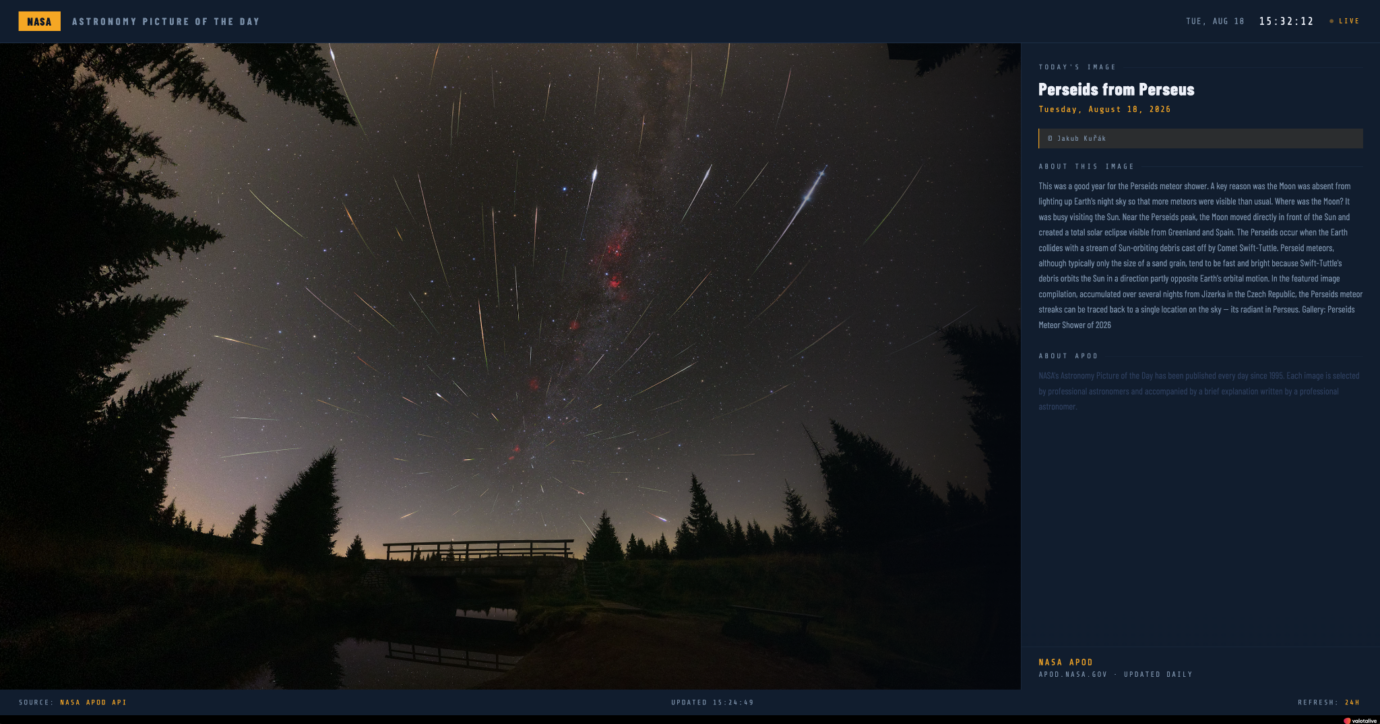
DEMO_KEY works for trying an API out, but it has much lower rate limits. NASA recommends signing up for your own developer key for anything beyond exploration.
And a follow-up prompt to change the look:
Make the colour scheme lighter. Replace the dark background with a deep
navy blue (#0B1628) and soften the black surface to a dark slate (#111D2E).
Change the accent colour from blue to a warm amber (#F5A623). Keep the
layout and functionality exactly as they are.That version took a few minutes end to end, including a couple of iterations.
How to Upload Your HTML App to Valotalive
First, activate the HTML App in the Valotalive dashboard (you need an Admin role). Configure the title and display settings, then copy the Secret key. Each HTML App instance has its own Secret key, so one key always maps to one display.
Then push the file by one of two routes.
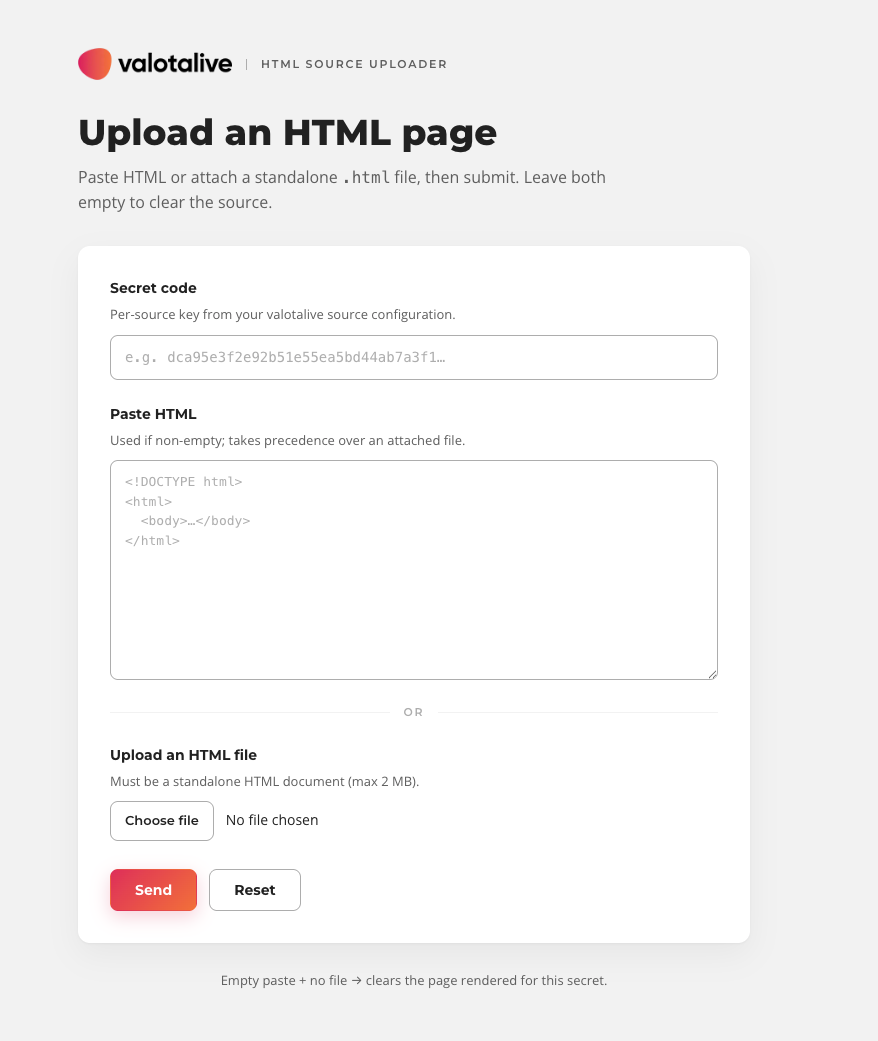
Option A: the upload page
The simple, visual route. No terminal and no commands.
- Ask the AI tool for the HTML file.
- Save it locally.
- Open the Valotalive HTML uploader page and paste in your Secret code.
- Paste the HTML directly, or choose your .html file.
- Click Send. Your display updates within seconds.
Option B: curl POST from your terminal
This is faster once you are used to it, and easier for a repeatable workflow if you update the same display regularly. Run a curl POST pointing at the Valotalive API. We have a sample below. Just note that the URL below is still a placeholder:
curl --compressed -X POST \
-F 'auth_key=YOUR_APP_SECRET_KEY' \
-F 'data=replace_with_your_app_secret_key' \
-F 'file=@/path/to/file.html' \
'https://valotalive-instance.valota.live/sources/html/?action=send'Each HTML App instance has its own Secret key. Make sure to keep it safe. Handle it the same way you would treat your password.
Re-pushing an updated file is the same action either way: new version, same command or same page, live on screen in seconds.
How to Get Content Onto Your Screens
Uploading the file is half the job. On its own, an uploaded HTML app does not know where it should appear. Assign it to a screen, a group of screens, or your whole fleet.
The Help Center covers Apps, Flows, and Displays in more detail.
How to Keep Your Vibe-Coded Apps’ Data Current?
There are three options. The right one depends on how often the data changes and where it lives.
- Static – data embedded in the file. The data is located in the HTML file. To update, give the AI tool the new data, ask it to regenerate the file, and push it again. This is best for content that changes weekly or monthly: an operational dashboard that does not update often, or a schedule that shifts a few times a year.
- Live public – data fetched at runtime. The file stays self-contained, but its JavaScript calls a public source on load. A public API, a published spreadsheet, or anything reachable from the internet. Upload once, and the app keeps itself current. This route needs the display to reach the internet, so check your network policy first. The NASA example above works this way.
- Live internal – data pushed by a local bridge. The app pulls from a source behind your firewall. A small watcher script on your own machine detects a change and pushes the new file automatically. The display never reaches into your network. This is the route for live production numbers and anything else that changes often and should not be public.
The rule of thumb: how often does the data change, and where does it live? Answer those two questions, and the right option is obvious.
Where Custom HTML Apps Earn Their Place
The value is in design freedom. You control every element of the layout and the branding, without being limited to what a template allows.
On the production floor and in operations:
- Shift production target against actual output
- Machine uptime and downtime tracking
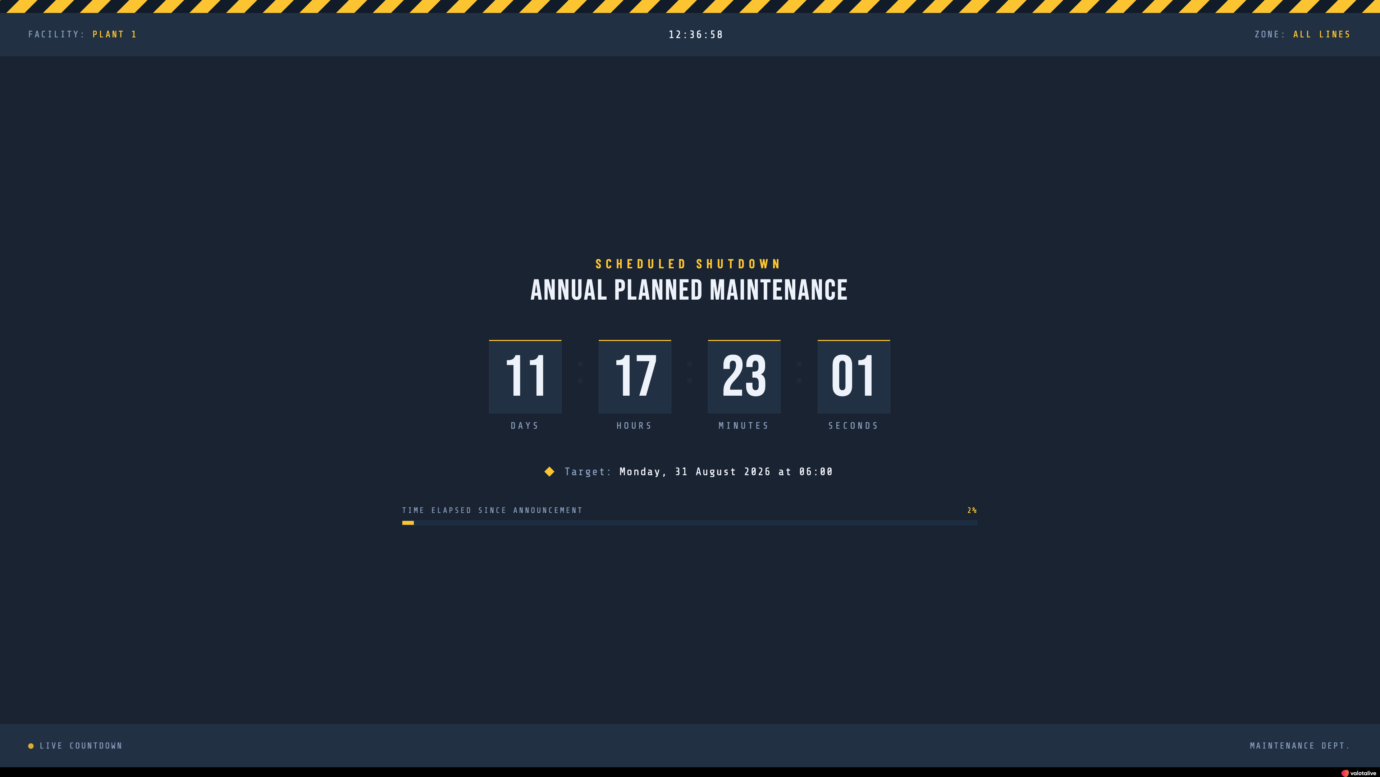
- Maintenance countdown to the next scheduled service
- Days without a safety incident
- Quality metrics for a line or a cell
Elsewhere in the building:
- Meeting room availability
- A company news ticker from an RSS feed
- Event schedules, speaker boards, live poll results
These fill a specific gap: a ready-made app would not cover it, and a custom development project would be too much. If a Valotalive app already exists for your source, like Power BI, SharePoint, Excel, SAP Analytics Cloud, use that instead. There’s less work, and the solution is easier to maintain.
But What About Security?
A self-contained HTML app has a small security surface by design, which makes this an easier conversation with an enterprise security team than most integrations.
- No server-side component. The file includes the structure, styling, and logic in one document. There is no external database and no server-side code on the app’s own side. The remaining questions are your data sources and the delivery channel, and the delivery channel runs on the secure Valotalive infrastructure.
- The Secret key is the access control. Each app instance has its own key, and that key is what lets a file reach that display. Treat it like a password. Keep it out of shared documents and public repositories, and regenerate it in Valotalive’s App Configuration tab if you suspect it has leaked.
- Live-internal data needs a proper review. The local bridge is the component to review with your security team. Check what data it can reach, which network segment it sits in, and what it exposes. The screen itself never connects to your private network.
- Keep sensitive details out of the file. Do not ask the AI tool to embed credentials or internal URLs in the HTML. Because screens are semi-public, anything shown on them can be viewed by anyone nearby. Avoid presenting confidential or personal details where they do not belong.
Getting Started
Activate the HTML App from the Valotalive dashboard, describe your first display to an AI assistant, and push the file. You can take the idea to screen in about as long as it takes to explain what you want.
Get Early Access
The Valotalive HTML App is in early access now.


