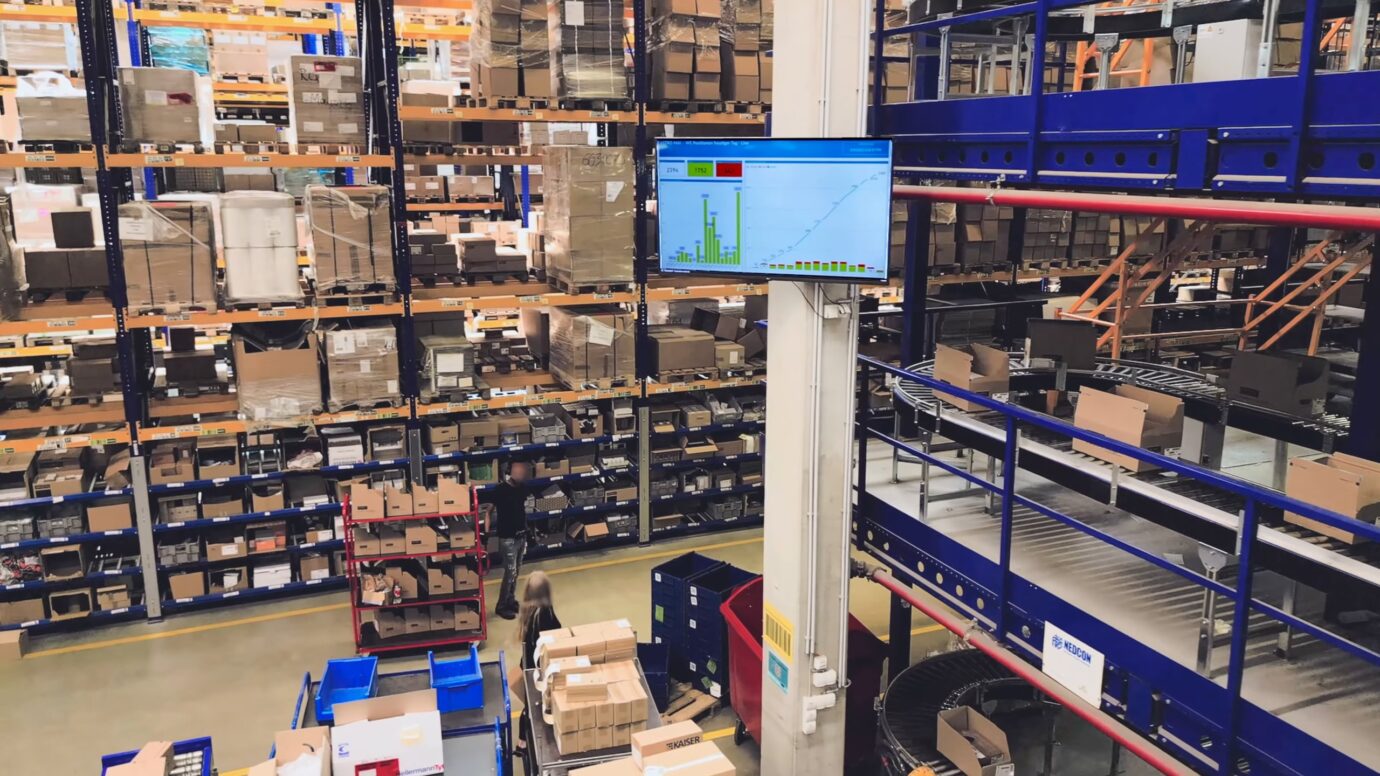
Building your own setup to show Power BI on factory screens, with a PC or media player that opens the report in a browser on each screen, works when you have one or a few screens that show the same report and rarely change. If you have screens at several sites, need different content on each screen, or need screens that stay signed in without someone fixing them, a digital signage platform is usually the better choice.
A self-built Power BI screen is a PC or media player with a browser that is signed in to Power BI and shows a report on a TV.
It works when:
- you have one or a few screens on one site
- every screen shows the same report from one PC (a PC per screen can show different reports, but then every PC and browser is one more thing to keep running)
- someone nearby can sign in again when the session ends
It does not work well when:
- screens on different lines or sites need different data
- the screens must run all day without anyone touching them
- IT requires managed devices and accounts
- people need to interact with the screen, for example in daily meetings
The alternative is a digital signage platform that connects to Power BI and turns the setup and upkeep of every screen into settings you manage in one place. Microsoft’s rules on sign-in, data refresh and licensing still apply on a platform too. These seven questions help you choose the right route, with Microsoft’s own limits quoted along the way:
- How many screens do you need, and on how many sites?
- Does every screen need different content?
- How should the report look and move on the screen?
- How fresh does the data on the screen need to be?
- Who signs in, and what happens when the session ends?
- Who owns the setup in two years – and will IT approve it?
- Will people need to interact with the screen?
1. How many screens do you need, and on how many sites?
One screen with a PC is easy to run. Every new screen adds another PC, another browser session, another sign-in and another thing that can stop working.
Several sites add one more question: who notices when a screen goes dark, and who walks over to fix it? A self-built screen stays dark until someone walks past it.
With a platform, you manage every screen from one place:
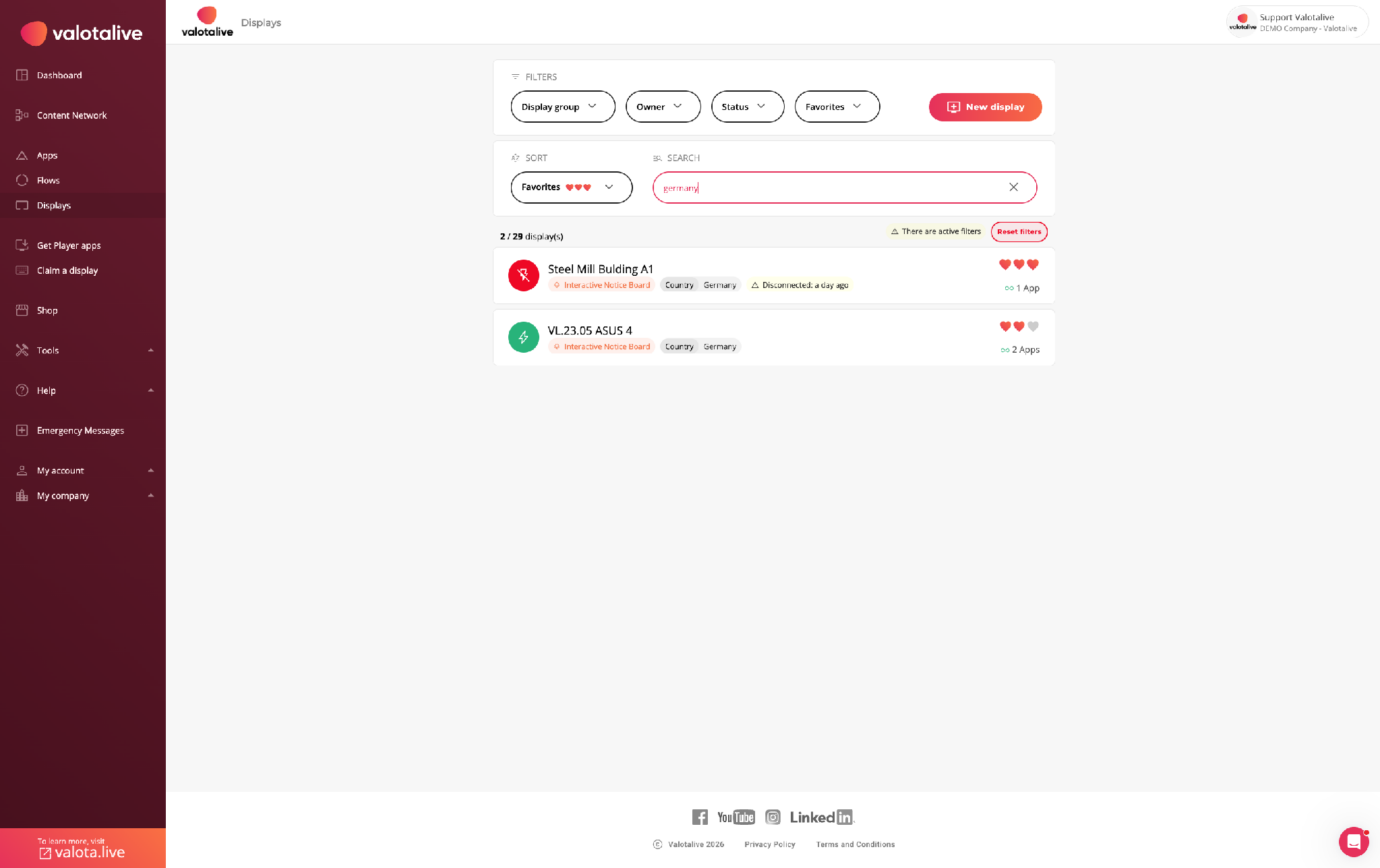
See the status of every screen. The dashboard shows which displays are offline, on every site.
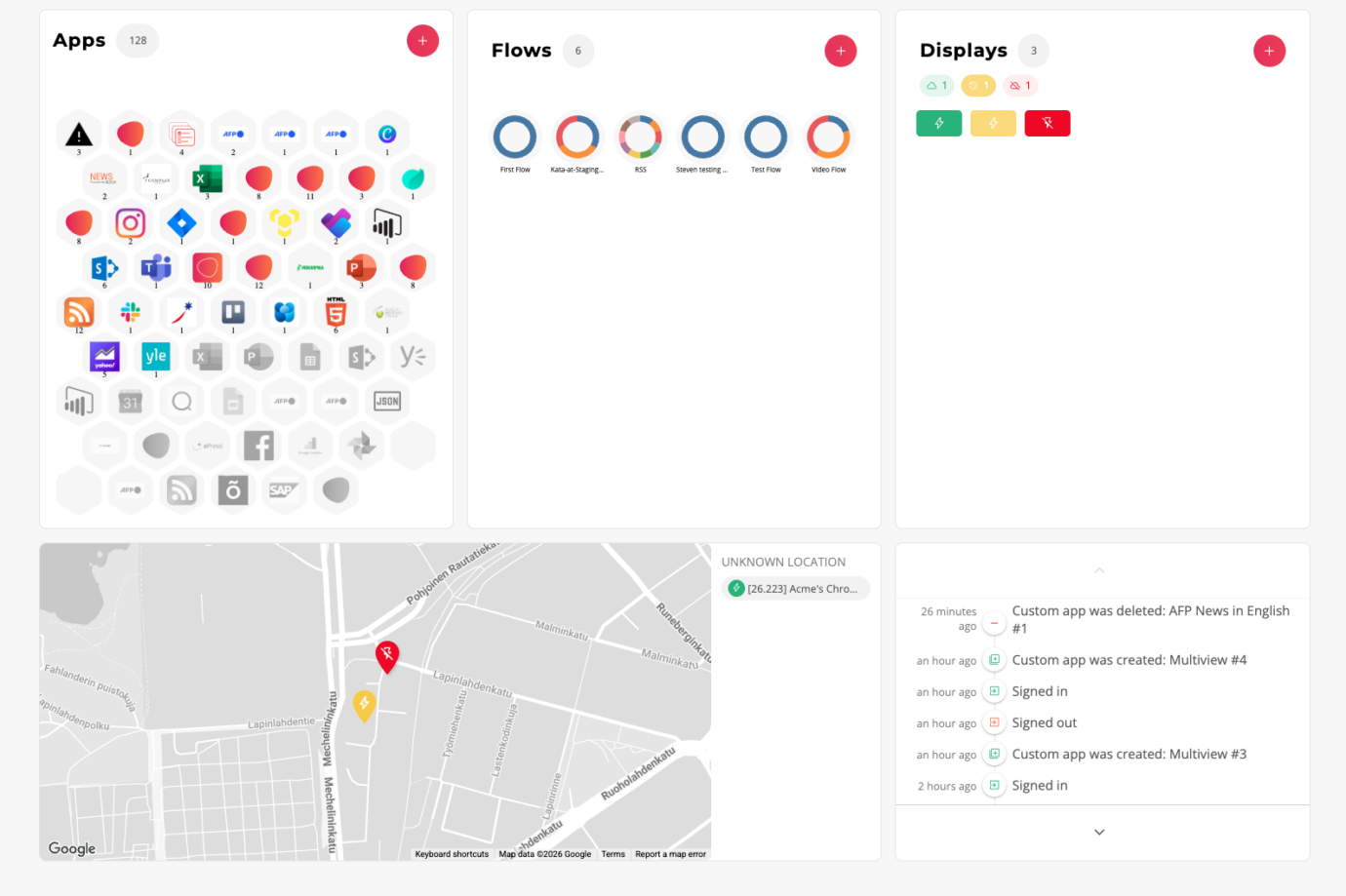
Change a setting once. Page rotation, filters and refresh are set in the Power BI app, so one change reaches every screen that shows it.
Give each site its own admin. Group admins manage the apps, flows and screens of their own site, and the central team keeps the view of all sites.
2. Does every screen need different content?
One report on one TV is simple. A factory rarely stops there. Each line wants its own numbers, the morning and night shifts need different views, and the same screen also has to show safety notices and company news.
With a self-built setup, each of these is a manual job on each PC. Power BI can filter a report through its URL, so every screen needs its own hand-built link, and Microsoft notes that “query string filtering doesn’t work with Publish to web”.
Rexel had info screens in its facilities before it moved to Valotalive, but without an integration every update was manual. Thomas Grüner, Manager WMS Tactical Board, describes it: “We had an expensive on-premise system that was hard to integrate so we basically ended up building PowerPoint presentations and manually displaying already outdated data on info screens that weren’t reaching all employees anyway.” Read the Rexel case study

With Valotalive, targeting is a setting:
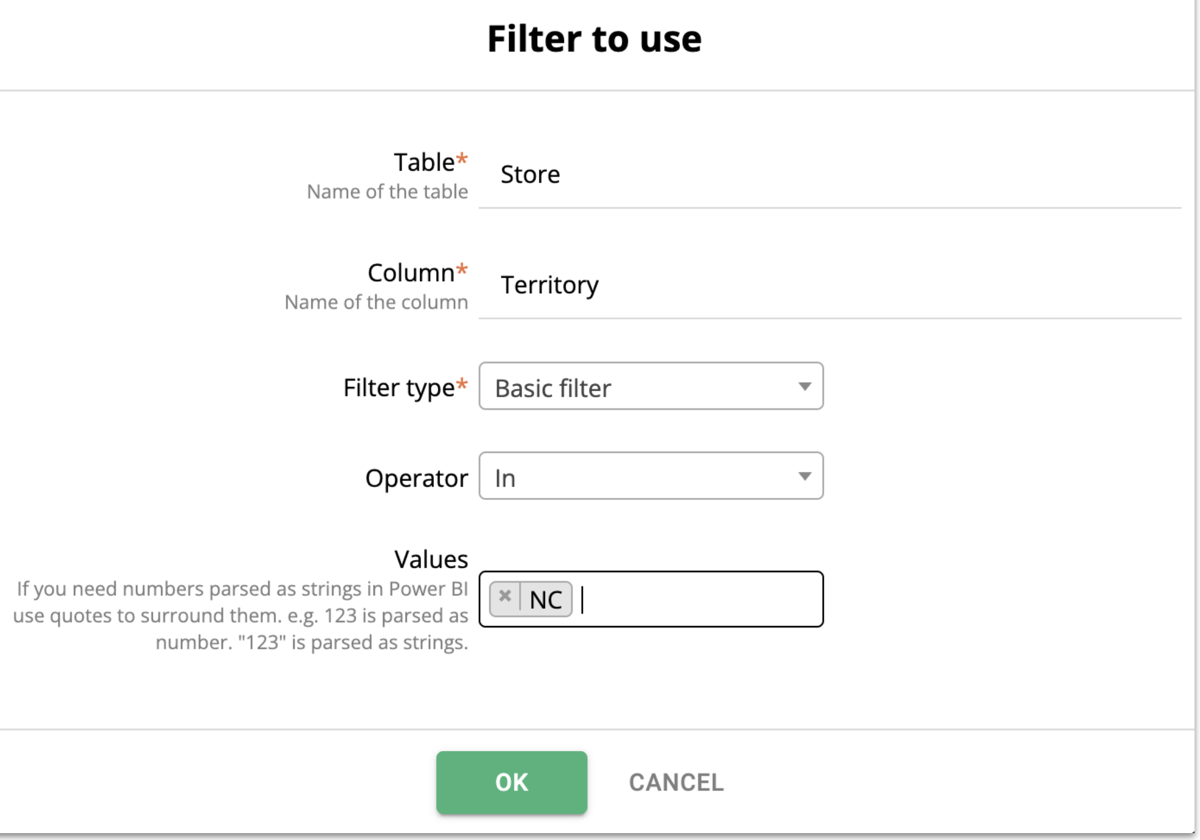
Each screen shows only its own data. You set a filter in the Power BI app settings (table, column and value, up to six filters). One report then shows line 1 on one screen and line 2 on the next, with no extra reports. See how to use Power BI filters on digital signage.
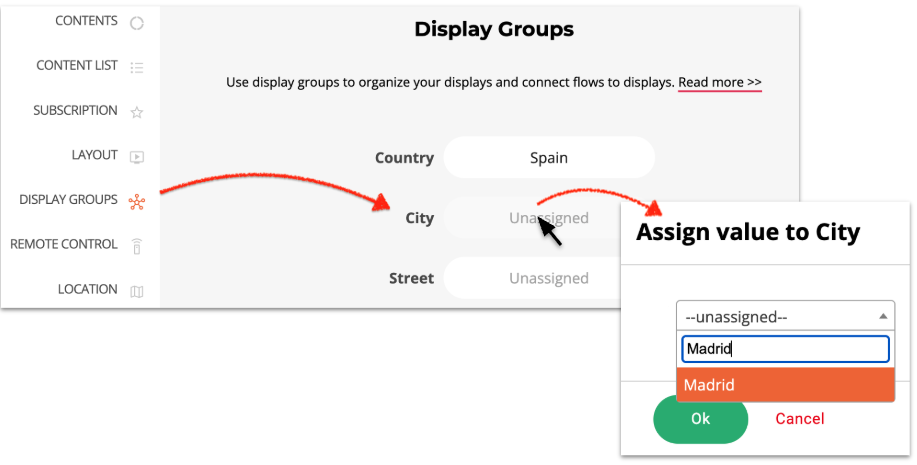
One change reaches a whole line or site. Tags group screens, so you update every screen in the group at once.
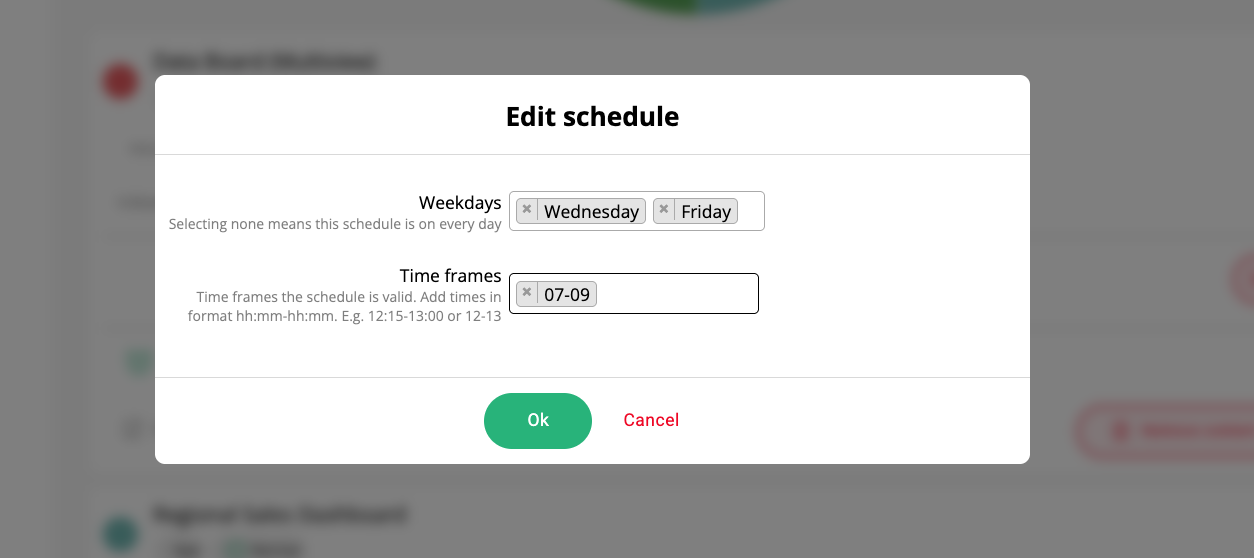
Content follows the shift. Schedules switch content by time of day or day of the week.
A report can share the screen. Multiview puts a Power BI report next to other content, such as safety notices or news.
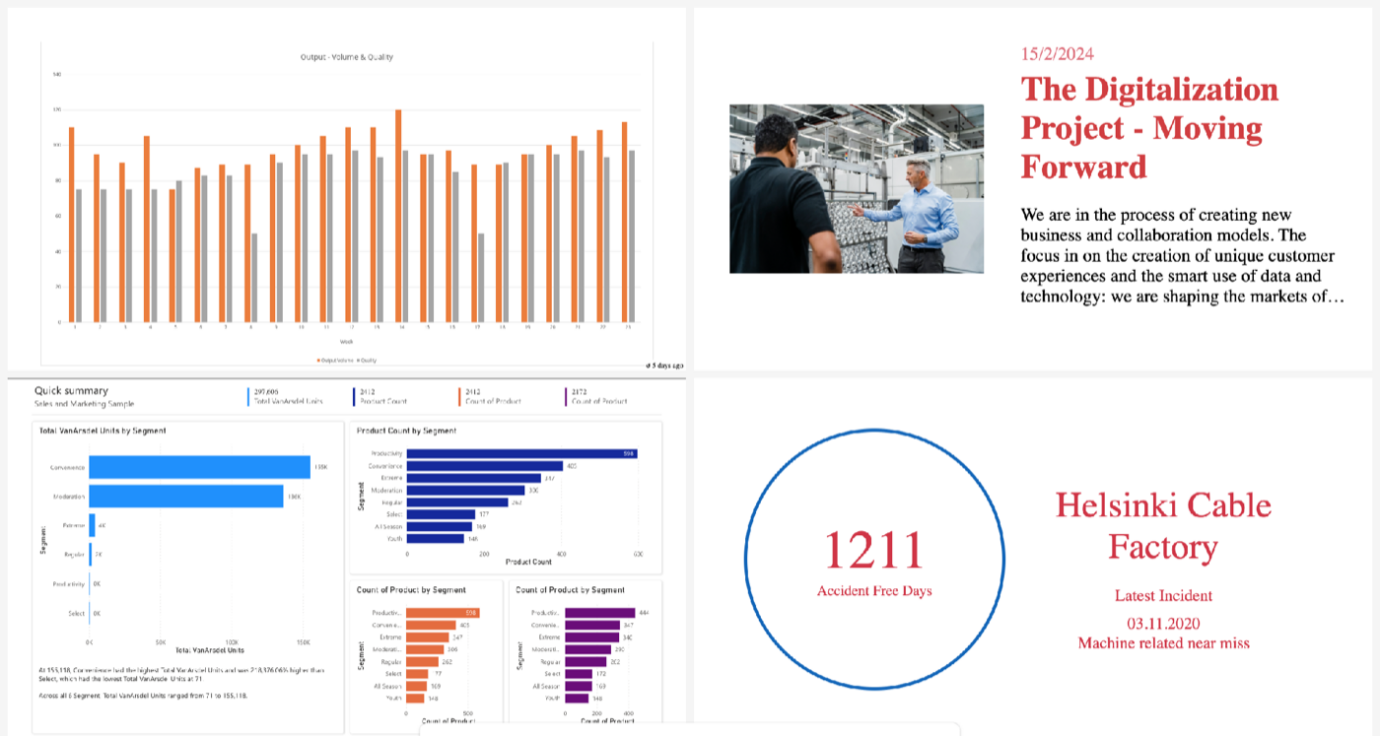
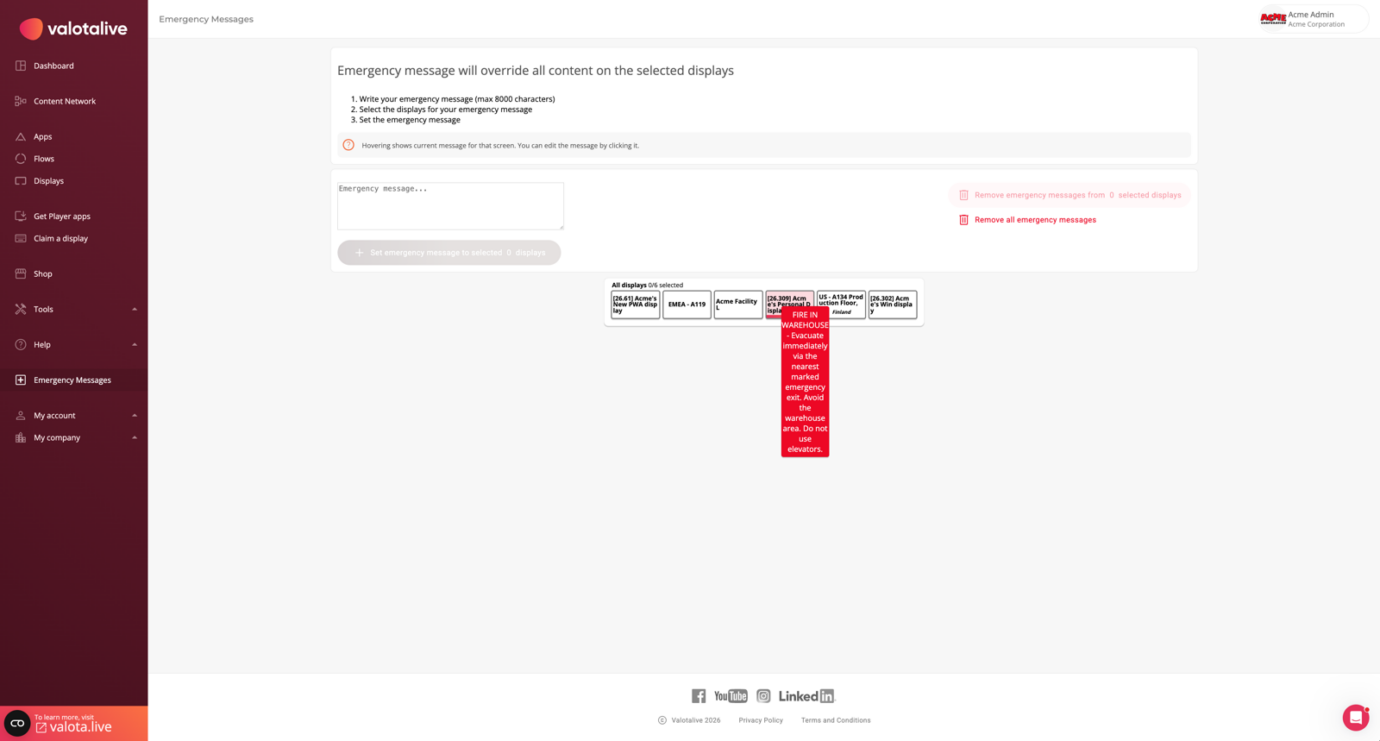
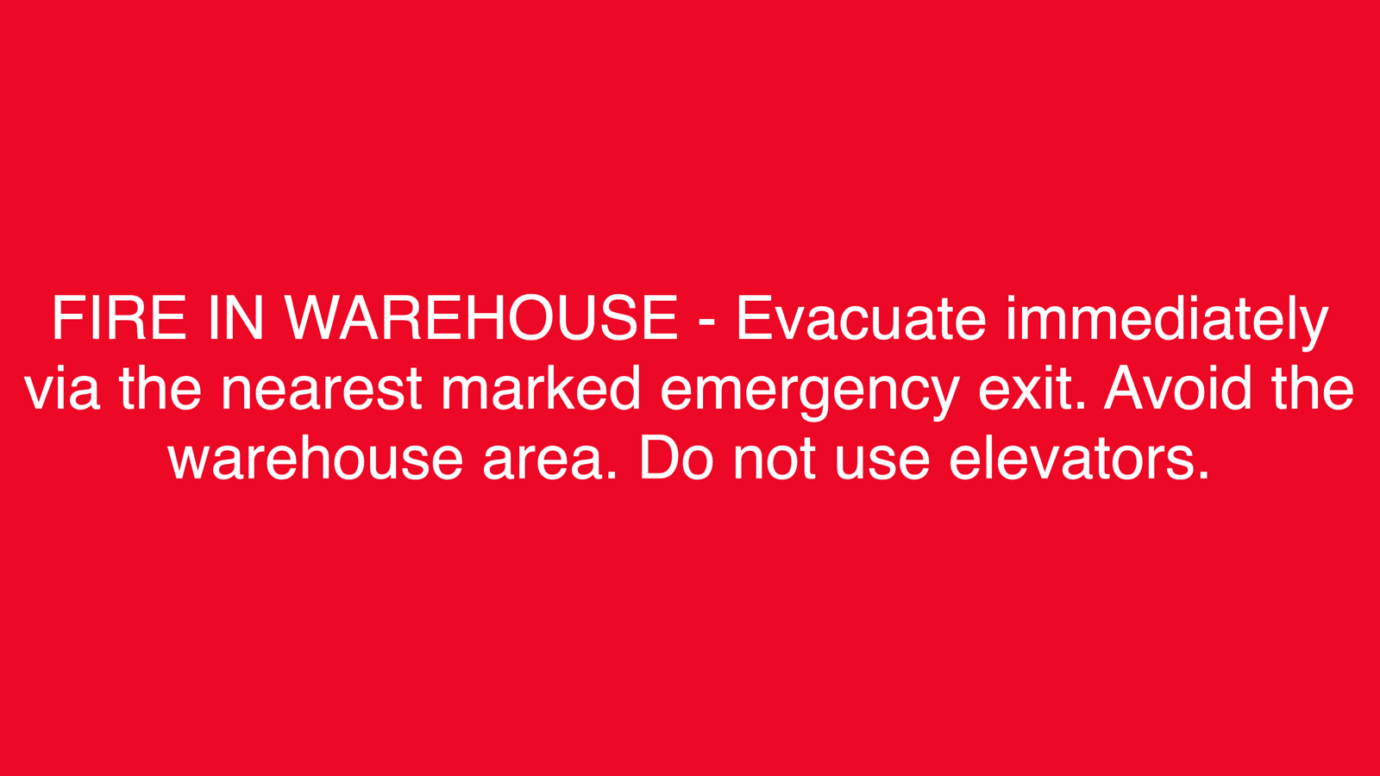
Urgent messages reach every screen. An emergency message overrides all content on the displays you select, or on all of them at once.
3. How should the report look and move on the screen?
A report built for a laptop is not automatically a good screen. On a wall, nobody clicks to the next page, and people read the screen from a distance in a few seconds.
Power BI has a full screen mode that “removes all UI elements for presentations or kiosk displays”. Moving between pages is still up to you. People who build their own use browser extensions and scripts for it. One wrote in Microsoft’s forum: “I ended up using the two Chrome extensions “Tab carousel” and “Tab Auto Refresh” combined.”
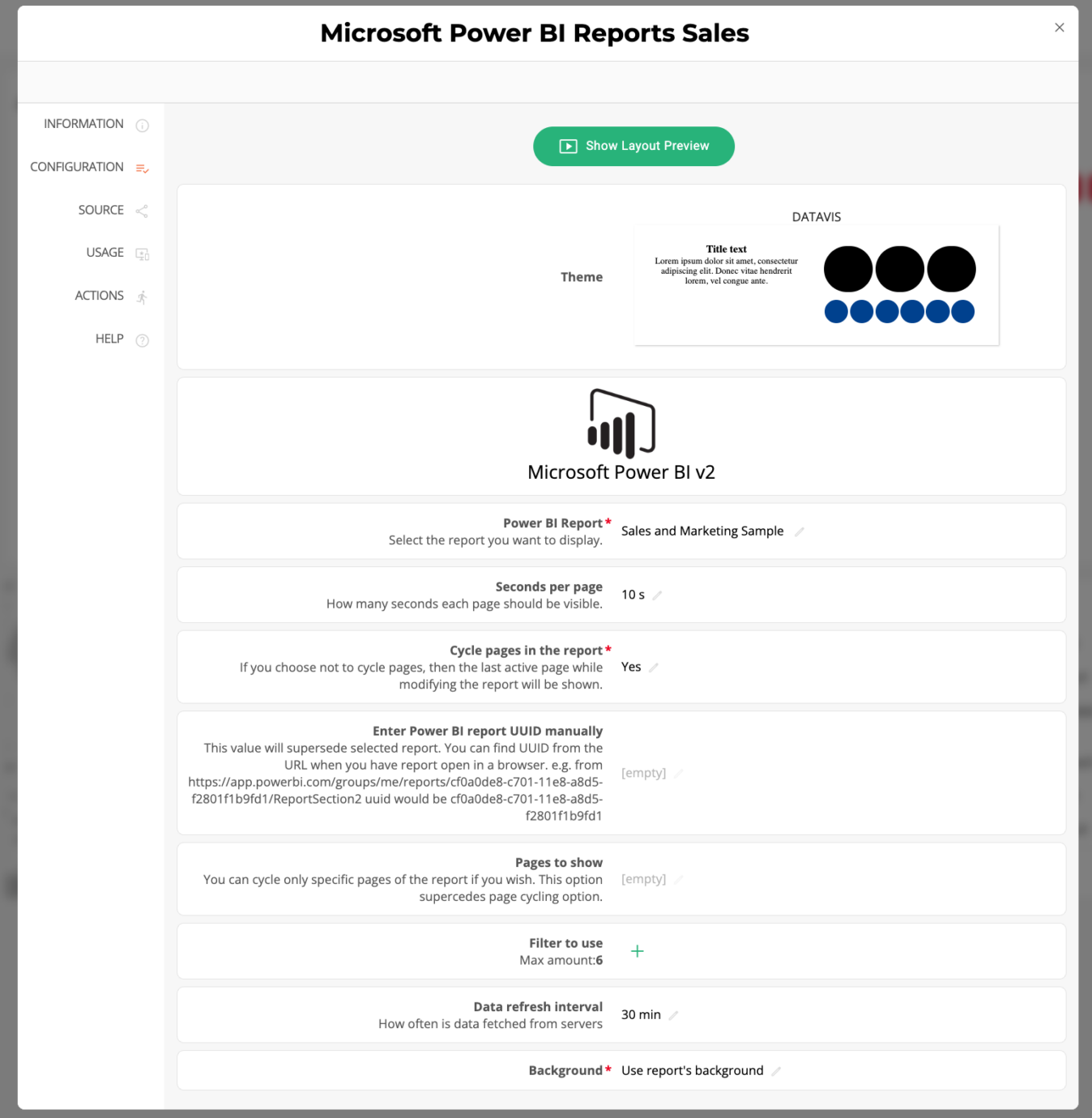
In the Valotalive Power BI app, these are app settings:
- Choose which report pages to show, and how many seconds each one stays on screen.
- Set how often the screen fetches new data from Power BI.
- Use the report background or a transparent one, so the report fits next to other content.
4. How fresh does the data on the screen need to be?
A screen can only show data as fresh as the report behind it. Microsoft sets these limits, and they apply to every route:
- Scheduled refresh: up to 8 times a day on shared capacity, and up to 48 on Premium, Premium Per User or Fabric capacity.
- Automatic page refresh: mainly for DirectQuery sources (not Import), with a minimum interval of 30 minutes on shared capacity.
- Publish to web: data is cached for up to one hour.
On top of these, the screen reloads the report at its own interval. Every reload is a request to Power BI, so many screens that refresh often add load to your Power BI capacity. Match the refresh interval to how often the data really changes, and plan it with your Power BI admin.
5. Who signs in, and what happens when the session ends?
Power BI needs a signed-in Microsoft account to show any report that is not public. On a screen that nobody touches, that sign-in is the part that most often breaks.
People who build their own report the same pattern in Microsoft’s community forum. In one warehouse, the dashboard asked for a new login after about an hour. In a 2023 post about a shop-floor KPI board “hanging 20 ft above a machine”, the session timed out every 24 hours. Microsoft’s community support staff answered another thread: “Currently, it should be by design that no option to set the timeout of the session and no option to prevent the automatically logout.”
The rules come from Microsoft Entra ID, which manages your company’s Microsoft sign-ins:
- Refresh tokens last 90 days by default, and a password change or an admin can revoke them earlier.
- Your IT team can use Conditional Access to require a new sign-in or MFA at set intervals.
- A report embedded in a secure portal needs a sign-in in every new browser window, and its token lasts about an hour by default. Microsoft: “You can’t automatically refresh the token in this scenario.”
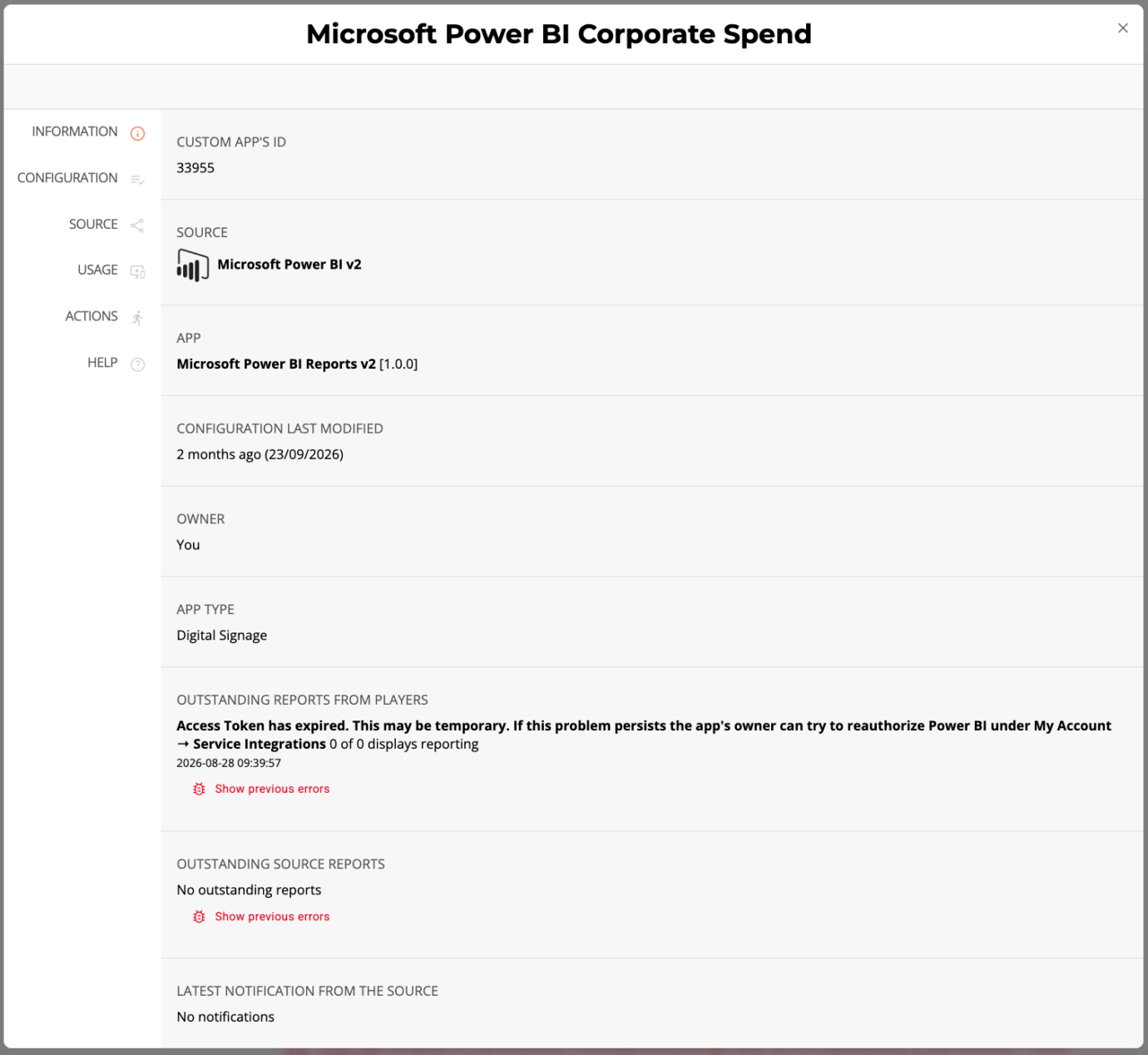
With Valotalive, one Microsoft account authorises the Power BI app once, and the same Entra rules apply: after the 90-day default, the account owner reauthorises. What changes is that this happens in one place for all screens, and the dashboard shows on the app when its authorisation has expired, so the app owner knows to reauthorise under My Account → Service Integrations. No Microsoft account sign-in is required on the display device.
6. Who owns the setup in two years – and will IT approve it?
A self-built screen often depends on one person: the one who set up the PC, the browser, the filters and the account. When that person changes jobs, the screen keeps running until the next sign-in prompt or the next content change.
Three shortcuts look easy and cause problems later:
- Publish to web. Microsoft’s Product Terms allow it “only on a publicly available website. Customer may not use this functionality to share content internally.” Microsoft also warns that “anyone on the Internet can view your published report”, and your Power BI admin can switch the feature off.
- Embed codes tied to one person. “The user who created the embed code needs to maintain access to the report for the embed code to work. This includes requiring a Pro or Premium Per User license.”
- A shared account on a TV. Some IT teams do not allow it at all: “according to policies, a user account should not exist if it’s not a real user.”
Check viewer licensing with your Microsoft licensing contact. It applies to every route.
Factory screens also often sit on production networks behind firewalls. Ask IT early which addresses the screens must reach. That applies to every route.
IT will review any route, including a platform. With Valotalive, your Entra administrator approves the Power BI app, the app uses a small set of delegated read permissions, and the screens run on Windows, Chrome OS or Samsung Tizen players that IT can manage. See how Valotalive handles security on screens.
7. Will people need to interact with the screen?
Many KPI screens start as passive displays. Then people want to click into the report, move between tabs or add an action item while they stand at the screen, for example in the daily floor meeting. A browser on a TV can show a report, but people cannot work with it without another build.
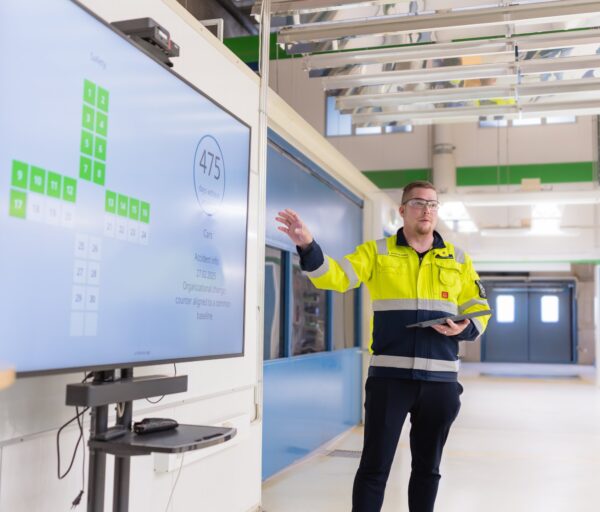
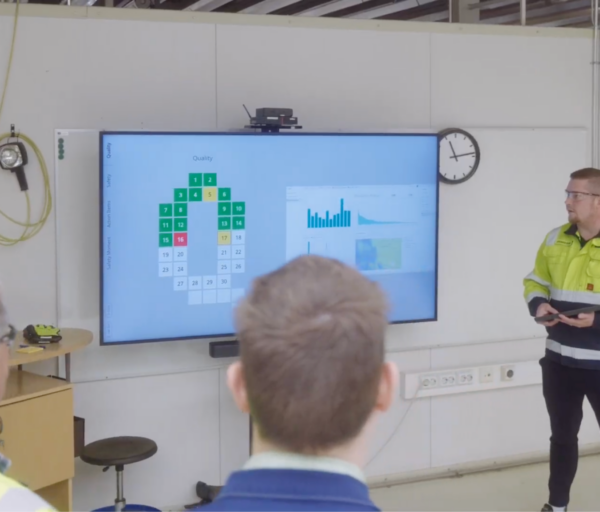
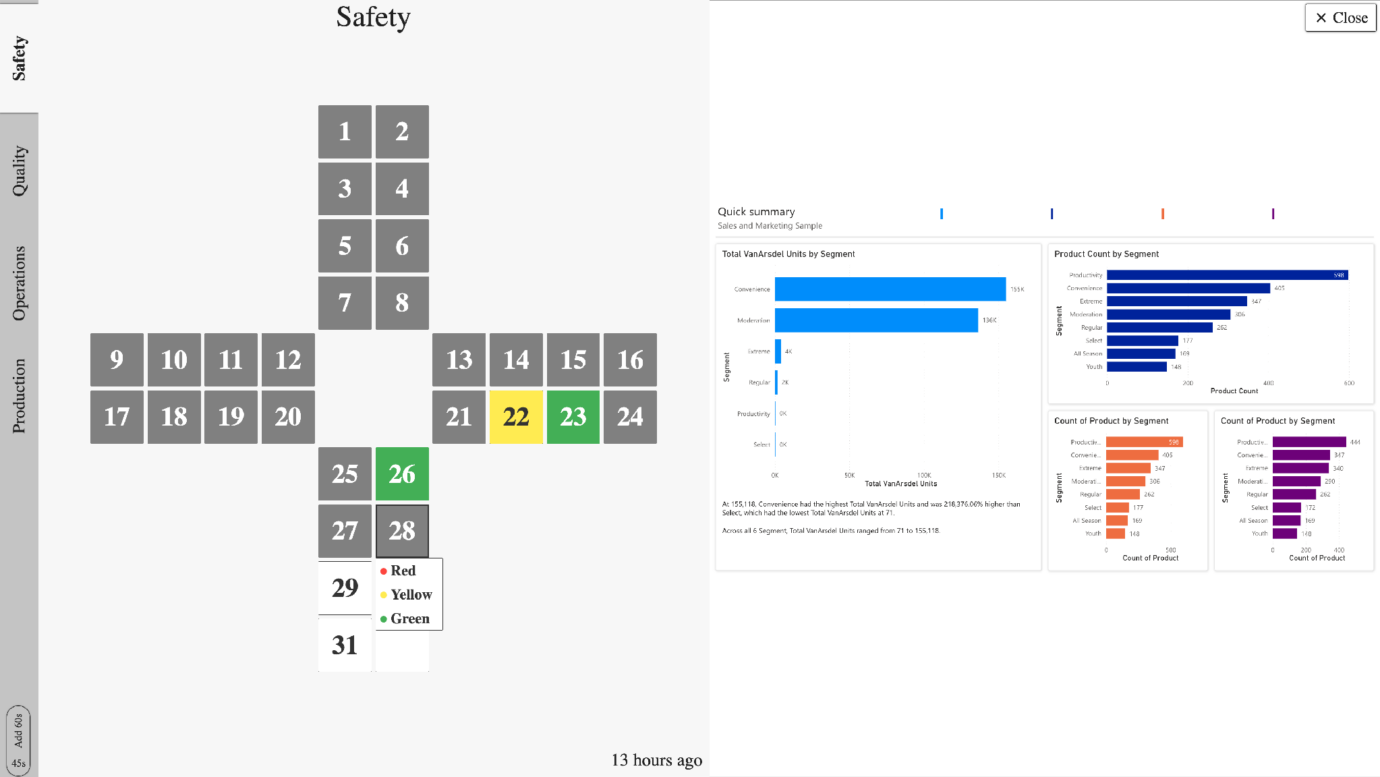
At Valmet Automotive, one screen brings together the Power BI production reports, the Safety Cross and the accident-free-days counter “instead of a whiteboard on the wall and Power BI on a laptop someone has to plug in and log into.” The plant is now testing the Digital Tier Board for its floor meetings.
The Digital Tier Board is our app for daily tier meetings. The same screen runs live dashboards all day and switches to meeting mode when the team gathers, with KPI tabs, the live Power BI report and action items on one screen. Teams use it with a mouse connected to the player.
When is building it yourself the right call?
Go back to the two lists at the top of this post. If most of the “works when” points are true, build it yourself.
If several of the “does not work well” points apply, compare the time your team spends setting up and keeping screens running with the cost of a platform.
How do the routes compare?
| Route | Who signs in | Does the session last? | Different content per screen | Page rotation | Who fixes it |
|---|---|---|---|---|---|
| Browser on a PC, personal login | A person, on each screen | Re-login reported from about an hour to a day | A filtered URL set up on each PC | Browser extension or script | Whoever walks over |
| Dedicated display account on a PC | One account, on each device | Same Entra rules | A filtered URL set up on each PC | Browser extension or script | The account owner |
| Publish to web | Nobody | No sign-in | URL filters do not work | Browser extension or script | The report creator |
| Custom embed app on capacity | Your app (service principal) | Managed by your app | What your developers build | What your developers build | Your developers |
| Valotalive | One authorising account | Reauthorise after the 90-day default; expiry flagged on the app in the dashboard | Filters, tags and schedules, set in one dashboard | Pages and seconds per page, set per app | App owner or admin, in one place |
In short
- Building your own works for one or a few screens, one report and someone nearby.
- The bigger the setup, the more the work is in targeting: the right data, page and content on each screen, at the right time.
- On a screen nobody touches, the sign-in breaks first. Microsoft’s community support staff say there is no setting to stop the logout.
- Check viewer licensing with your Microsoft licensing contact. It applies to every route.
- Microsoft’s refresh limits apply to every route, including a platform.
- Publish to web is for public websites only, not for internal screens.
- If people will ever need to interact with the screen, plan for it now.