
Slack on Digital Signage
Display your Slack messages on Digital Signage. The Valotalive Slack app follows the selected channel(s).
The service provides a turnkey integration that uses secure Slack OAuth 2.0 authentication.

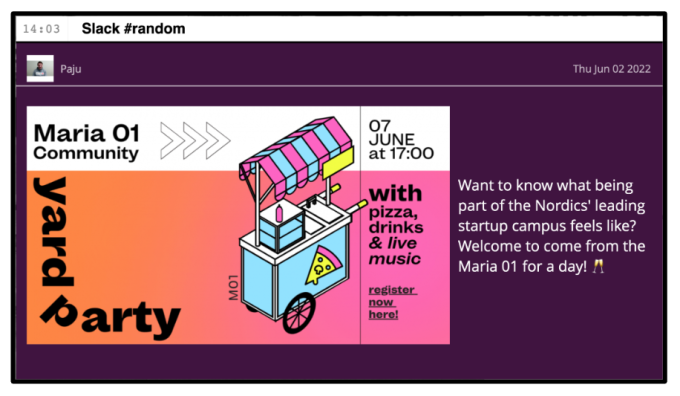
Share Slack channel messages to corporate TV with ease
Efficient Slack communication
- Info screen plays posts from the selected channel(s)
- Make sure communications reach all employees, including those in production facilities
- Reinforce communications and company culture in offices
- You can also target content to different display groups


Use the Slack app with a plug & play integration
- The Valotalive Slack app includes a ready-to-go integration
- The app is easy to activate
- Valotalive can be found, as a listed vendor, on the Slack Marketplace
Stream Slack messages from multiple channels
- One app can display messages from four channels
- Additionally, you can activate various Slack apps
- It is easy to target content to a single screen or a group of screens at a time
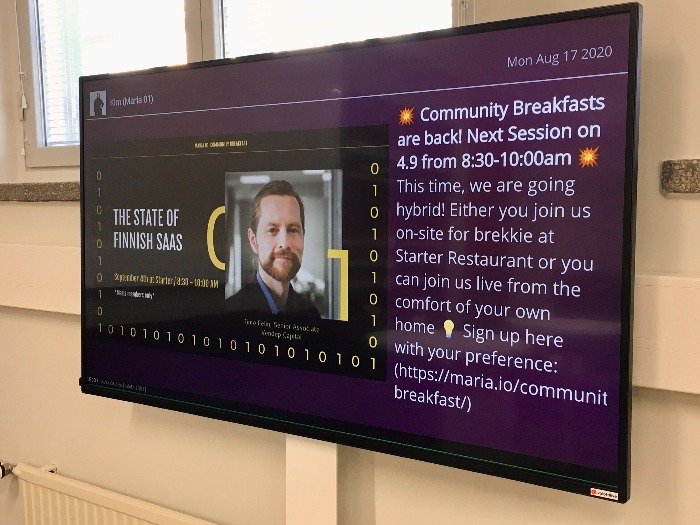

Customize the look to suit your brand
- Valotalive supports the following formats: text, images, videos (MP4), and emojis.
- You can add a separate Call-to-action field at the end of the message
- Match your brand’s visual look and feel by creating your own theme for displayed messages
“Valotalive’s native integration with Slack has been a great visual addition to our multi-channel communication needs as we want to reach our community of over 1,300 people here at Maria 01.”
– Tuomas Manninen, Chief Happiness Officer, Maria 01 Startup Community
Share your Slack content securely to Valotalive Info screens in less than 10 minutes
Step 1: Add the Valotalive app to a selected Slack channel
Open Slack on your desktop and click on Apps at the top of the left sidebar. Search for “Valotalive” and then click Add. You will be redirected to Slack’s app directory. Click Add to Slack. Follow the instructions to install the app.
Step 2: Log in to Valotalive and activate the Slack app there
Create a Valotalive account here (free trial), and activate the Slack app under “Apps”
Step 3: Set your desired settings
In Valotalive in the Slack app settings, there is a drop-down menu where you can select the channels you want to follow.
Step 4: Set the Slack app to selected screens
You can target the app to a selected screen or always to groups of screens. In addition, the Valotalive Web Player is an easy way to test the app on your own computer — it runs in your browser, no installation.