
Power BI on Digital Signage
Valotalive puts your live Power BI reports and dashboards on any TV or screen — securely, with no public URLs. Sign in with your Microsoft account — authentication follows Microsoft’s Entra ID token policy — and the data stays current on screen automatically, reaching everyone on the floor, in the warehouse, and on the line, not just the people at a desk.
Valotalive is a registered Microsoft Partner Network integration — continuously maintained and kept up to date with Power BI releases.

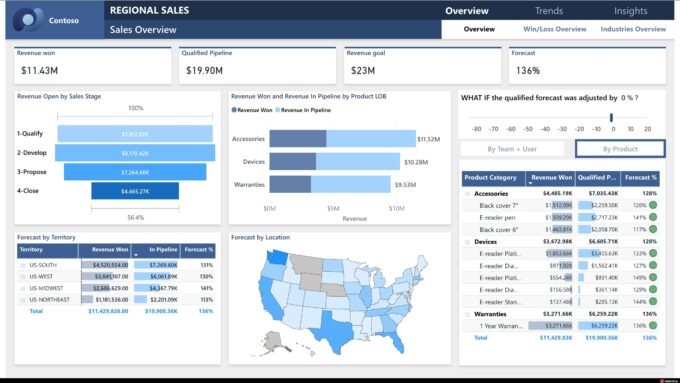
Reports That Stay on the Desktop Don’t Change Anything
Most operational data is locked to desktops and Power BI logins. Frontline and shop-floor teams won’t stop to open a shared computer, so the dashboards that should drive daily decisions go unseen. The usual workaround — exporting a slide or printing a chart — is out of date the moment it’s posted.
What You Can Do with Power BI on Valotalive
Valotalive isn’t one Power BI button — it’s a set of apps, each built for a different functional workflow. Pick the one that matches what you need to do.
Put a live report on screen, always on
- The Power BI Report app shows a report on any screen and cycles through its pages — set seconds per page, or pick only the pages you want
- A data refresh interval you set keeps the figures current automatically — no manual exports
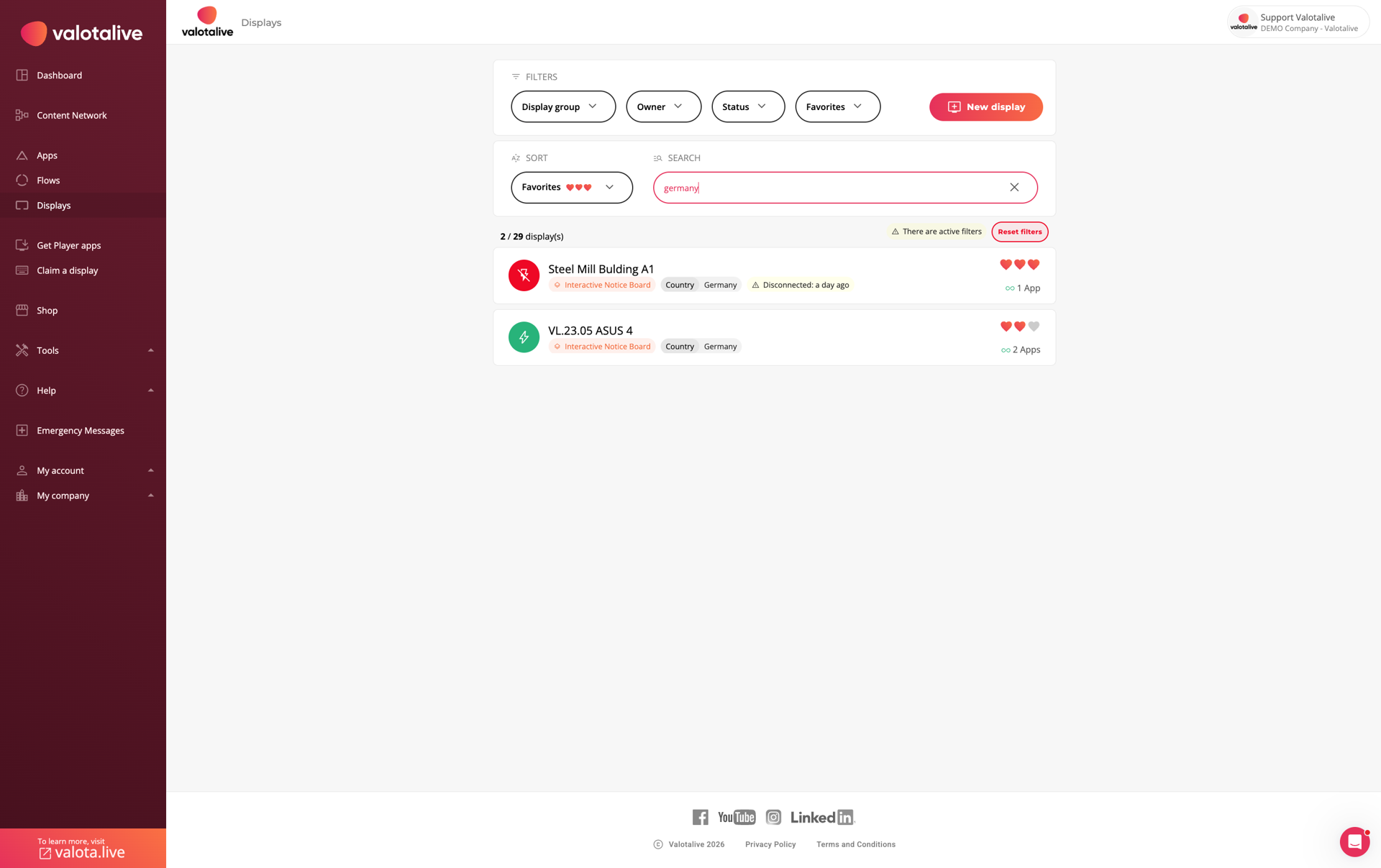
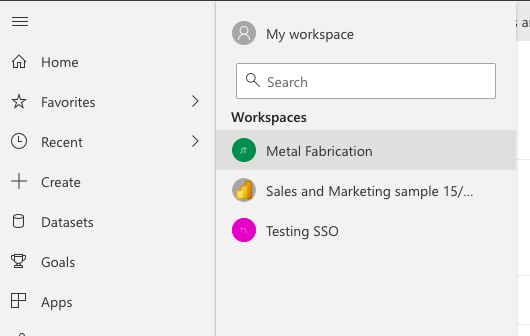
Show a Power BI dashboard
- The Power BI Dashboard app displays a Power BI dashboard (a different object from a report)
- You set the dashboard’s width and height to match your screen — Power BI dashboards don’t auto-scale — and it reloads on a set interval
- Display from any workspace you have access to, even reports built by someone else
Split one screen into multiple independent content zones
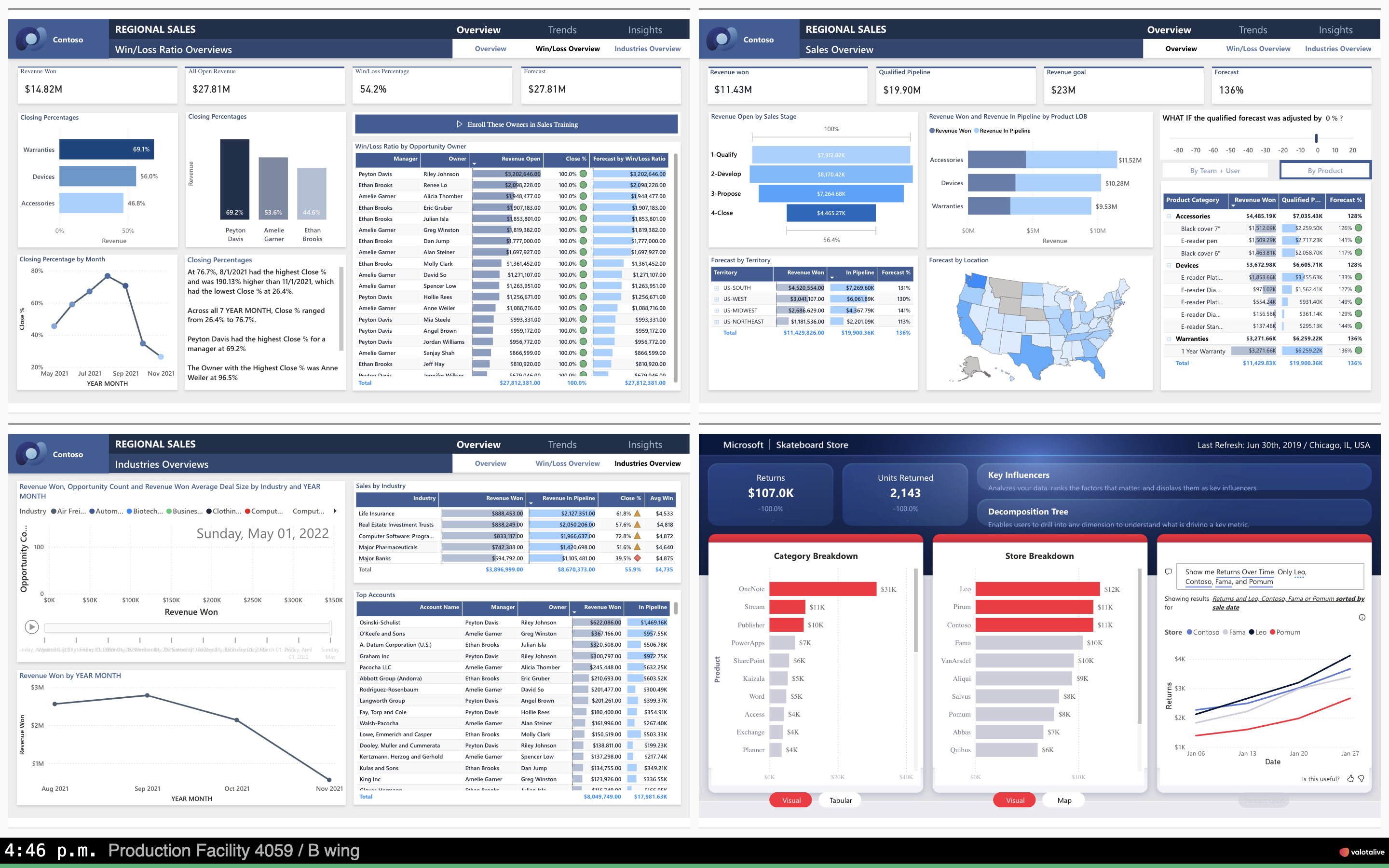
- With Multiview, split one screen into multiple content zones and show different reports, dashboards or report pages side by side
- Brand the layout to match your company, and combine Power BI with other Valotalive apps in the same view

Give each site or shift its own filtered view — from one report
- Filters already built into your Power BI report carry through to the screen automatically
- Add Valotalive filters per screen by table, column and value (case-sensitive) — so each site, line or shift sees its own view of the same report
- Target reports to specific screens or screen groups across locations
Share with people who don’t have Power BI
- People watching the screen don’t need a Power BI license — only the account that authenticates the Valotalive integration does
- The data reaches everyone on screen from a single authenticated connection, with no extra logins required
- For broader sharing options, see our guide to sharing Power BI reports with external or free users

Interactive Power BI and Tier Meetings on Digital Signage
With a mouse connected to the player, explore tabs, apply filters and drill into live Power BI reports.

Interact with the Power BI report on screen
- When a mouse is connected to the player, explore tabs, apply filters and drill into the live report on screen
- Works on Windows and Chrome OS players and supported Samsung SoC devices
- For touchscreen-driven interactive signage, see the Interactive Notice Board
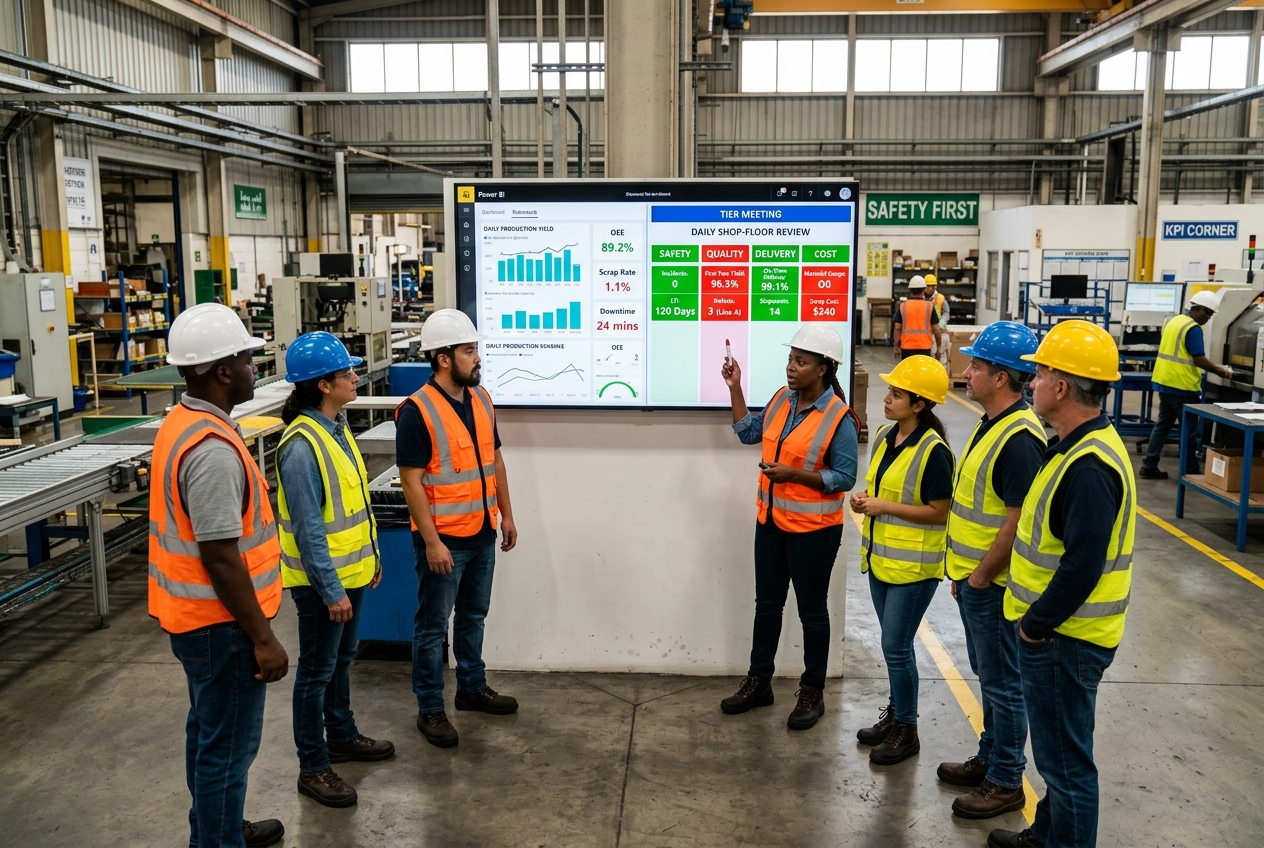
Connect live Power BI data to tier meetings and shop-floor boards
- The Digital Tier Board pairs live Power BI reports with interactive SQDC/SQDCP KPI pillars in one workspace
- Tap the screen to switch from always-on signage into a structured tier meeting view — explore BI dashboards, update production and safety KPIs, and log action items — then return to signage automatically
How the Integration Works
Valotalive connects to Power BI through Microsoft Entra ID (OAuth 2.0) — your reports are never published as public URLs. You display reports and dashboards from your own My Workspace or any Shared Workspace you can access, even if someone else built them. In organisations with app governance, an administrator approves the Valotalive Power BI app in Entra ID once; after that, users sign in normally. Works on Windows, Chrome OS and Samsung Tizen players.
Whatever you’ve already connected to Power BI — SharePoint, Dynamics 365, Salesforce, Excel, ERP and MES systems — appears on screen automatically as the data updates. No reconnection required.
Tip: use a dedicated Microsoft account for digital signage with access only to the reports you want displayed — this limits data exposure and makes re-authorisation straightforward.
Why Teams Put Power BI on Valotalive
- Reach everyone — live data on the floor, not just at desks
- Always current — automatic refresh, zero manual work
- Secure — Microsoft sign-in, no public report links
- Many views at once — multiple reports or dashboards on one screen simultaneously
- Verified — Registered Microsoft Partner Network integration, continuously maintained and kept up to date with Power BI releases
Where Power BI on Signage Fits
The same integration powers very different displays — from quiet always-on dashboards to interactive meeting screens.

Manufacturing and shop floor
- Live production KPIs on the floor
- SQDCP tier meetings powered by live Power BI data via the Digital Tier Board — see the shop-floor meetings use case
- OEE, safety and quality metrics where the work happens

Operations and data teams
- Warehouse, control-room and office screens — no rebuilding required. Also powers the Data & Operational Excellence use case.
- No extra Power BI licenses for people who just view the screens
- Per-screen filters so each location sees its own data from one report

Safety and performance displays
- Safety, quality and OEE metrics refreshed automatically
- Always-current data — no one needs to log in or update slides
- Combine Power BI with other Valotalive apps in multi-zone layouts

“Having just one centralized data source for all critical data makes daily operations simpler and less prone to errors — employees don’t have to manually check various systems anymore.”
Thomas Grüner
Manager WMS Tactical Board, Rexel
Get Power BI on Screen in Under 10 Minutes

1. Activate and authenticate
Create a free Valotalive account, activate the Power BI Report or Dashboard app, and sign in with Microsoft (Entra ID). Tip: use an account with limited permissions so only the right data is exposed.

2. Choose what to show
In the app settings, pick the workspace and report, then set pages, filters and refresh interval. For most setups, start with the Report app — it handles page cycling, auto-scaling, and data refresh automatically.

3. Put it on a screen
Add the app to a display or flow. No screen yet? Preview it with the Valotalive Web Player — right in your browser, no installation.
Frequently Asked Questions
The Report app shows a Power BI report and cycles through its pages, fitting the screen automatically. The Dashboard app shows a Power BI dashboard, which you size to your screen (dashboards don’t auto-scale) and which reloads on a set interval. For most use cases, we recommend starting with the Report app.
Yes — people watching the screen don’t need a Power BI license. Only the account that authenticates the Valotalive integration needs an active Power BI account. The data reaches the screen from a single authenticated connection, visible to anyone who can see the display.
Yes — with Multiview you can show multiple reports, dashboards or report pages at once in separate content zones on a single screen.
Yes — in two ways. Filters set in the Power BI report carry through automatically, and you can add Valotalive filters per screen or screen group (by table, column and value), so every location sees its own view of the same report. Filter values are case-sensitive.
Reports update as the Power BI dataset refreshes in the background — typically every 15 minutes. Valotalive\’s Data Refresh Interval setting also lets you trigger a forced dataset refresh at a set interval — useful when you want to guarantee freshness independent of Power BI’s own schedule.
Connecting uses Microsoft Entra ID (OAuth 2.0). In organisations with app governance, an administrator approves the Valotalive Power BI app in your tenant once; after that, users sign in normally.
Yes, when a mouse is connected to the player — explore tabs, filter and drill down. The Digital Tier Board extends this further: it keeps always-on signage running and switches to a structured meeting workspace on a click, with live SQDC/SQDCP KPI pillars alongside your Power BI reports, then returns to signage automatically.
Windows, Chrome OS and Samsung Tizen displays. For large, heavy reports we recommend Windows or Chrome OS players for the fastest load.
Token lifetime is controlled by Microsoft’s Entra ID policy, not by Valotalive. The default refresh token lifetime is 90 days, after which re-authentication is required. Tokens can also be revoked by an administrator at any time. See Microsoft’s documentation: https://learn.microsoft.com/en-us/entra/identity-platform/refresh-tokens
A browser works for a single screen but requires manual session management, can’t be controlled centrally across locations, breaks when the Microsoft token expires (every 90 days), and doesn’t support scheduling, multi-zone layouts, or mixing Power BI with other content. Valotalive manages authentication, scheduling, and content rotation across all screens from one place.